
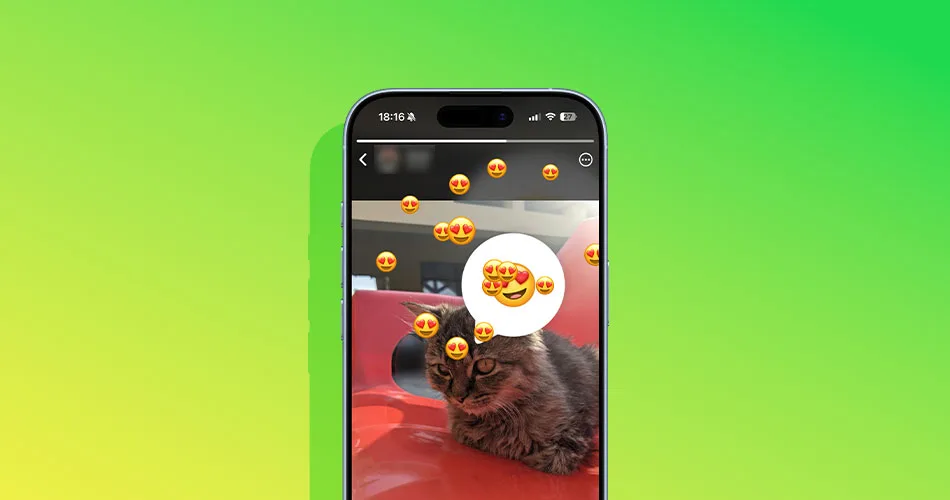
WhatsApp is now rolling out Status reaction stickers, which let you add interactive sticker-style reactions directly onto your own Status.
So instead of people only viewing your update, they can respond with quick reactions in a more fun, visual way. If you’re seeing the feature, here’s exactly how to use it.
What are WhatsApp Status reaction stickers?
Status reaction stickers in WhatsApp are interactive stickers you can place on your Status update, encouraging viewers to react instantly.
Think of them like a “React to this” prompt built right into your Status. It’s a small addition, but it makes Status feel a lot more social.
How to Add Reaction Stickers to Your WhatsApp Status
Step 1: Open WhatsApp Status
- Open WhatsApp
- Tap the Updates tab
- Under Status, tap My Status or the + button to create a new one
Step 2: Create your Status update
Choose what you want to post:
- A photo
- A video
- A text Status
Once selected, you’ll land on the Status editor screen.
Step 3: Tap the Sticker icon
At the top of the editor, you’ll see several icons (text, drawing, stickers).
Tap the Sticker icon.
This opens WhatsApp’s sticker and interactive tools.
Step 4: Select the Reaction Sticker option
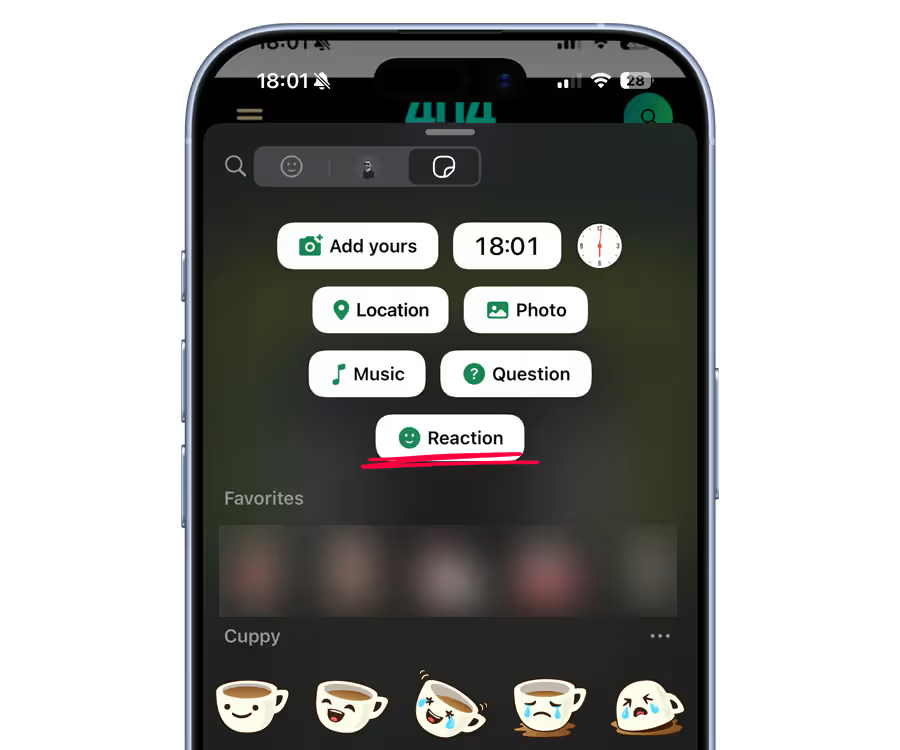
Inside the sticker menu, look for the new Reaction button. Pick a sticker and tap it to insert it onto your Status.
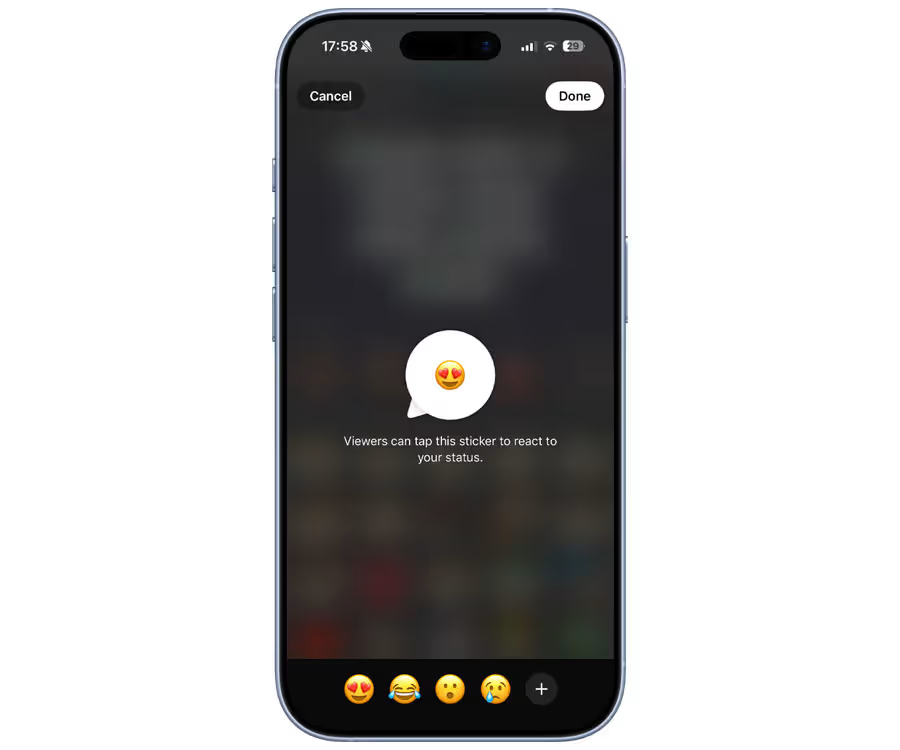
Step 5: Customize the sticker placement
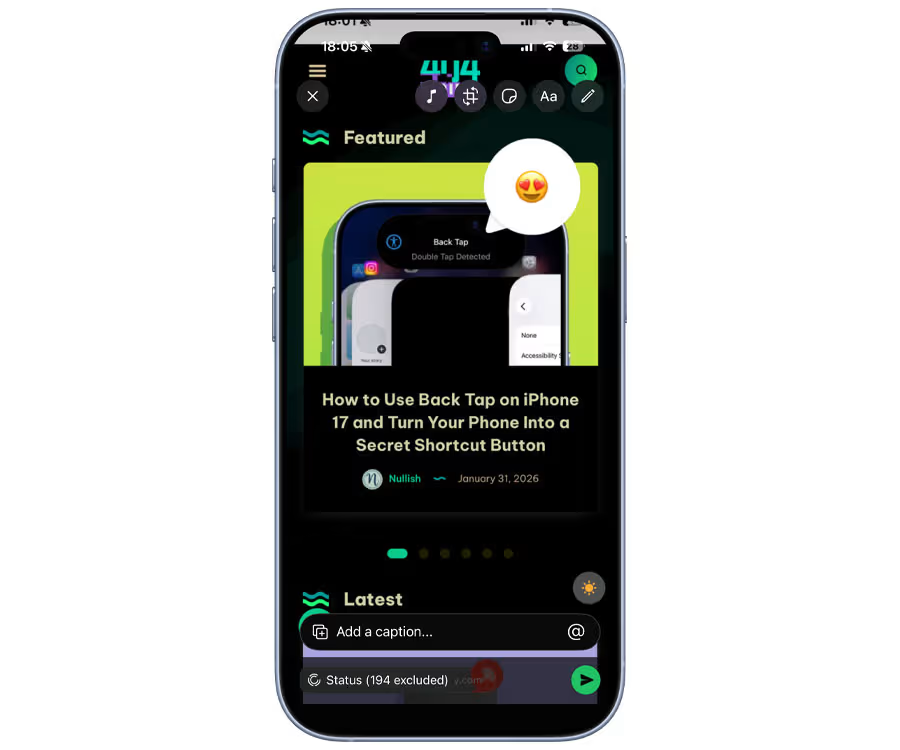
Once added, you can adjust it like any other Status sticker:
- Drag it anywhere on the screen
- Pinch to resize
- Rotate it for better placement
Put it somewhere noticeable, especially if you want people to actually use it.
Step 6: Post your Status
When everything looks good:
- Tap the Send button
Your Status will go live with the reaction sticker included, letting viewers respond quickly.
Why this feature is a big deal
Reaction stickers make WhatsApp Status feel more interactive without needing full replies.
It’s great for:
- Quick opinions
- Fun engagement
- Poll-like reactions
- Casual updates that don’t need a chat
Basically, it’s WhatsApp borrowing a page from Instagram Stories, and it works.
Don’t see reaction stickers yet?
If the option isn’t showing up, try this:
- Update WhatsApp to the latest version
- Restart the app
- Keep in mind it may still be rolling out gradually
WhatsApp features often appear in phases, so some accounts get it earlier than others.