
If you’re planning to connect a monitor to the new MacBook Neo, there’s one small detail worth knowing.
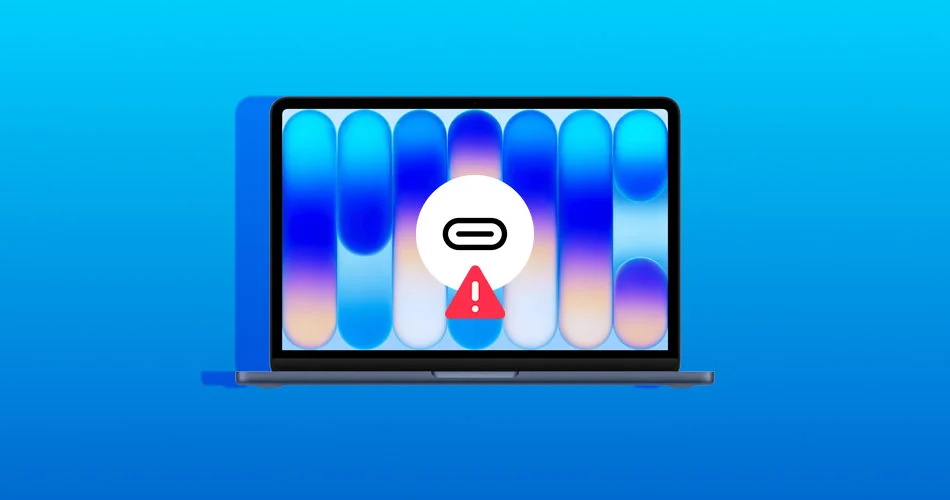
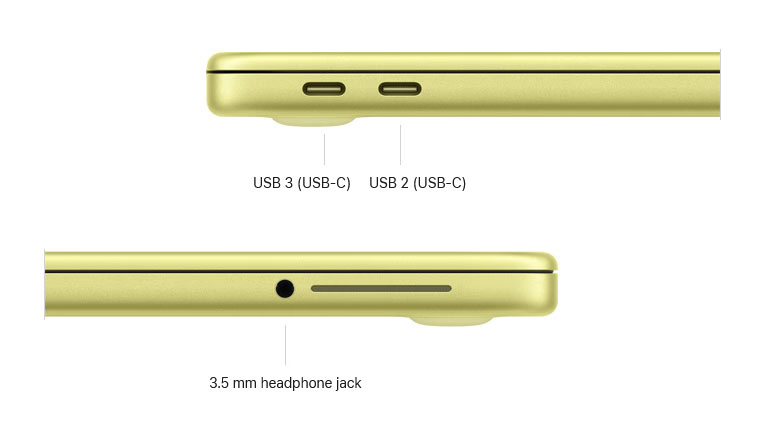
Unlike most recent Macs, the two USB-C ports on MacBook Neo are not identical. Only one of them supports external displays. The other port handles charging and slower data transfers but cannot output video.
The tricky part is that both ports look exactly the same. There’s no icon or label that tells you which one supports DisplayPort.
Fortunately, macOS has a built-in safeguard.
macOS will warn you if you use the wrong port
If you plug your monitor into the USB-C port that does not support video output, macOS will show an on-screen warning as pointed out by John Gruber of Daring Fireball.
I am reliably informed by Apple product marketing folks, a significant engineering achievement to get a second USB port at all on the MacBook Neo while basing it on the A18 Pro SoC. And while the ports aren’t labeled, if you plug an external display into the “wrong” port, you’ll get an on-screen notification suggesting you plug it into the other port. That this second USB-C port is USB 2.0 is not great, but it is fine.
The system notification explains that the display is connected to the wrong port and suggests moving the cable to the other USB-C port. Once you switch ports, the monitor should immediately start working.
This is a helpful addition because many users would otherwise assume something is wrong with their cable, dock, or monitor.
RELATED: MacBook Neo Has 8GB RAM Only, No Upgrade Option Available
Quick tip: use the rear USB-C port for displays
To avoid the warning entirely, remember this simple rule.
- The rear USB-C port supports DisplayPort and external monitors
- The second USB-C port only supports charging and USB 2 data speeds
The display-supported port can handle data speeds up to 10Gb/s, while the second port is limited to 480Mb/s.
If you plan to use both ports at once, it’s generally better to plug your monitor into the rear port and use the other port for charging or accessories.
RELATED: Mac Won’t Wake External Monitor from Sleep on macOS Sequoia? Here’s How to Fix It (2025 Guide)
External display support is limited
Even when connected correctly, the MacBook Neo can drive one external display up to 4K at 60Hz.
WORTH CHECKING OUT: MacBook Neo Wallpapers: Download All 4 Official Colors for Your Mac and PC
Higher-resolution monitors such as the Apple Studio Display can still connect, but they won’t run at their full 5K native resolution.
For most users buying the MacBook Neo as an affordable everyday laptop, that limitation probably won’t matter much. But if you rely heavily on multiple monitors or high-resolution displays, it’s something to keep in mind.