
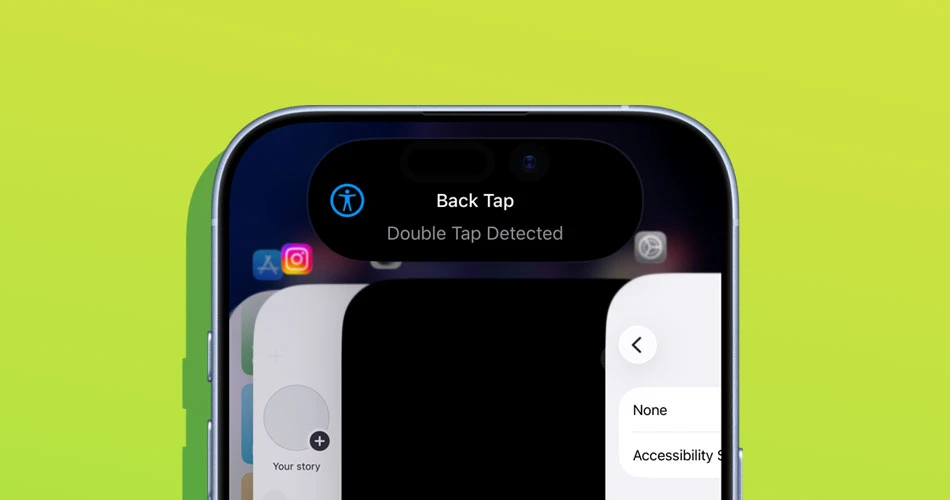
Apple loves giving us genuinely useful features… and then hiding them like an easter egg. Back Tap is one of those.
If you’re on an iPhone 17 running iOS 26, you basically have a secret button built into your phone. Not on the side. Not on the screen. It’s on the back.
Yes, you can literally tap the back of your iPhone to do things like:
- Take a screenshot
- Turn on the flashlight
- Open the camera
- Run a Shortcut
- Trigger a bunch of other handy actions
Once you set it up, it feels like you unlocked a cheat code Apple forgot to advertise. Let’s get into it.
What is Back Tap?
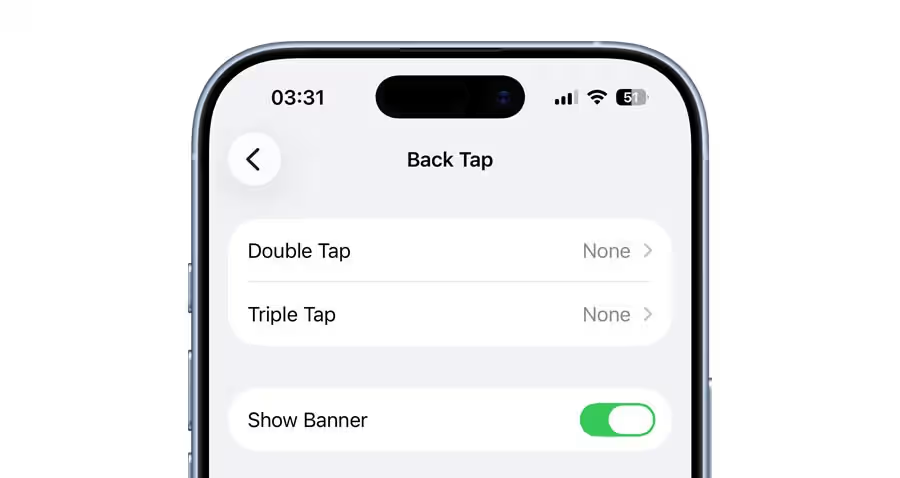
Back Tap is an iOS feature that lets you assign actions to:
- Double tapping the back of your iPhone
- Triple tapping the back of your iPhone
So instead of digging through menus, you can just tap-tap and something happens instantly. It’s simple, slightly ridiculous, and surprisingly useful.
Why Back Tap is actually worth using on iPhone 17
Back Tap has been around for a while, but it feels especially smooth on newer iPhones. On the iPhone 17, it’s fast enough that it doesn’t feel like a gimmick. It feels like something Apple should’ve made obvious years ago.
Also, if you’re a new iPhone user coming from Android, this is the kind of shortcut feature you’ll appreciate immediately.
How to enable Back Tap on iPhone 17 (iOS 26)
Alright, here’s the step-by-step part.
- Open the Settings app and head to Accessibility
- Tap Touch
- Scroll all the way down and tap Back Tap
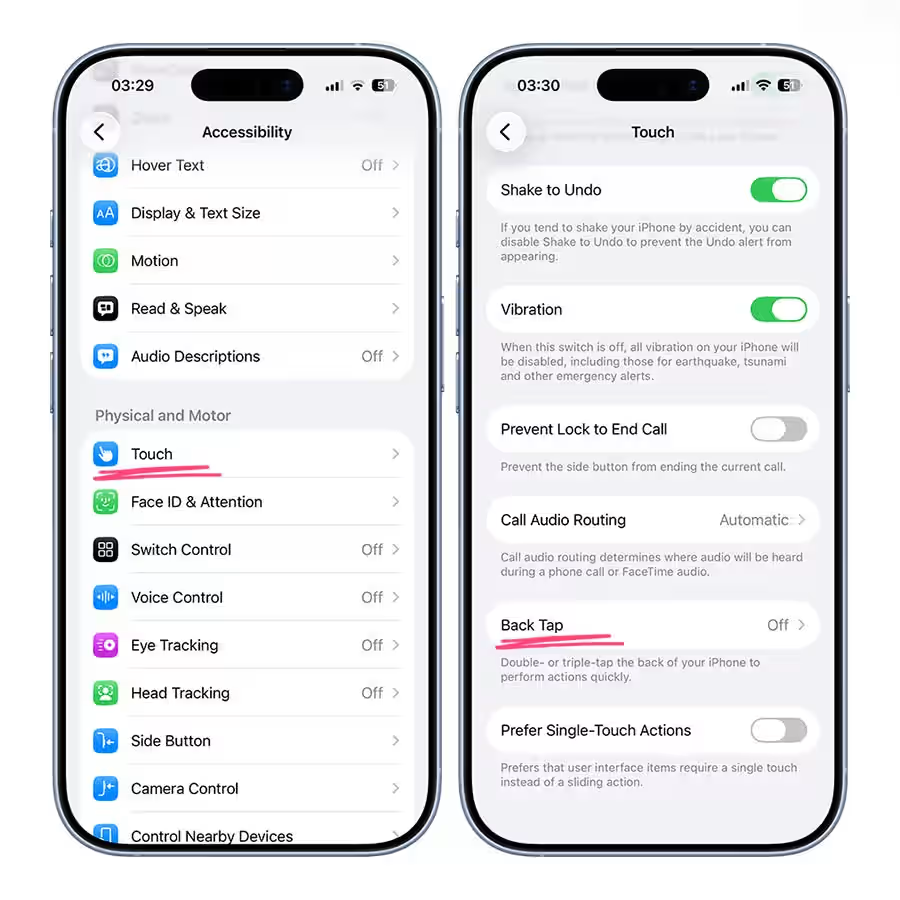
- Choose either:
- Double Tap
- Triple Tap
- Pick an action from the list
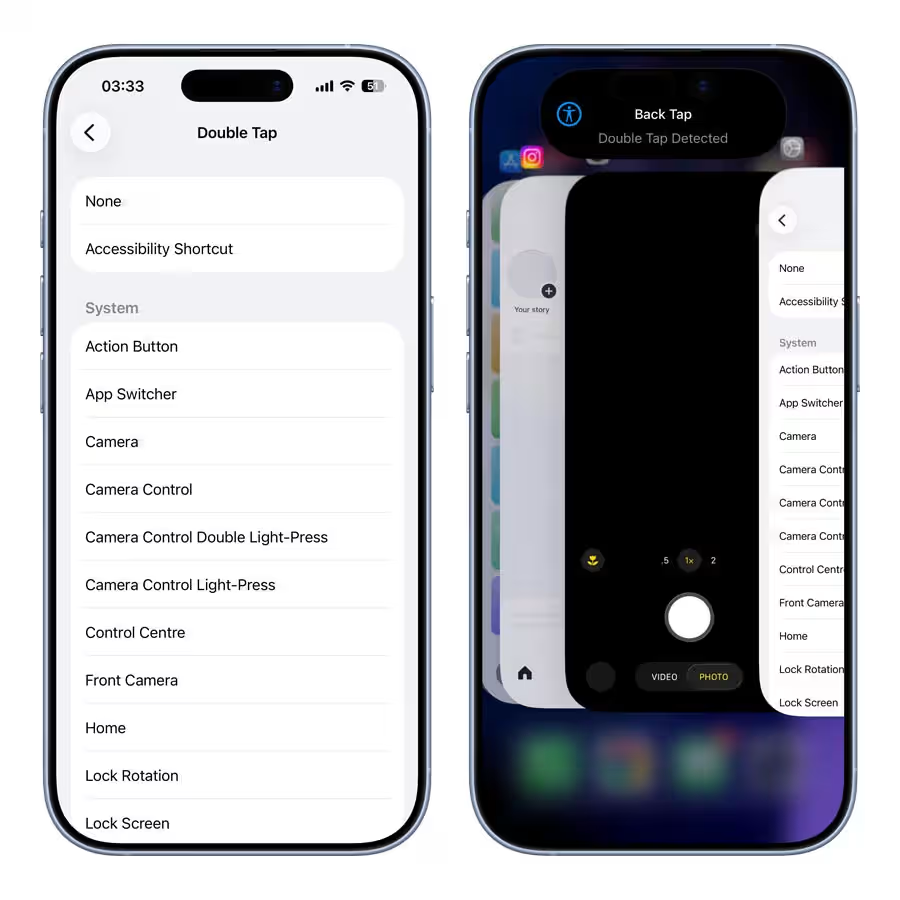
That’s it. Your iPhone now has invisible buttons.
Best Back Tap actions to try first
Apple gives you a long list, but here are the ones that actually make sense for most people.
The “why didn’t I do this sooner” picks
- Screenshot
- Flashlight
- Camera
- Control Center
- Notification Center
If you want the easiest starter setup:
- Double Tap > Screenshot
iPhone 17 Pro Max users may find it hard reaching the top to swipe down for the Control Center or Notifications given the massive 6.9-inch display in play here, a double tab could be a useful shortcut.
Triple tap? Well, personally I don’t think i’d be knocking on the back of my phone thrice, so i’d leave this up to you.
The real fun: using Back Tap with Shortcuts
This is where Back Tap goes from “cool trick” to “I use this daily.” Instead of choosing a built-in action, you can assign it to a Shortcut. Meaning you can tap the back of your phone to:
- Turn on Low Power Mode
- Start a timer
- Open Spotify
- Shazam a song
- Send a quick message
- Trigger a smart home scene
Basically, Back Tap becomes whatever button you want it to be. To set this up:
- Go back into Back Tap settings
- Scroll down until you see Shortcuts
- Pick the Shortcut you want
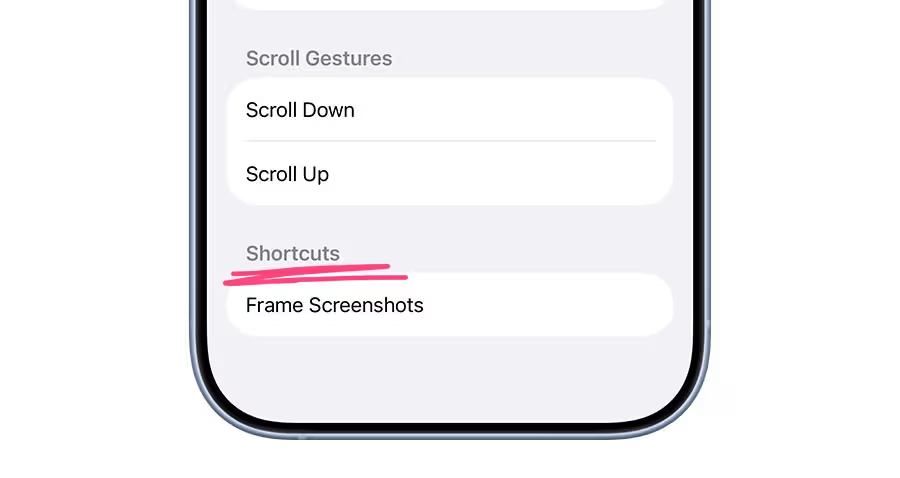
Now your iPhone is doing party tricks.
Does Back Tap work with a case?
Yes, most of the time. Even with a case on, Back Tap usually works fine, especially on newer iPhones like the iPhone 17.
If it feels inconsistent, try tapping a little more firmly near the Apple logo area.
Tips to avoid accidentally triggering it
Back Tap is great, but you don’t want it going off every time you adjust your grip.
A few quick tips:
- Avoid assigning it to something too sensitive at first
- Triple Tap is harder to trigger accidentally than Double Tap
- Keep it to quick actions you won’t regret
Flashlight is a safe choice. Sending texts automatically… maybe not on day one.
Back Tap isn’t just a random accessibility setting. It’s genuinely one of the most useful shortcut features on iPhone, and it feels right at home on iOS 26.
It takes less than a minute to set up, and once you do, you’ll start wondering why Apple doesn’t ship iPhones with this turned on by default.