
Apple quietly added a genuinely useful video calling feature in macOS Tahoe 26.2 called Edge Light. If you spend a lot of time on FaceTime, Zoom, or Google Meet, this is one feature you should absolutely be using.
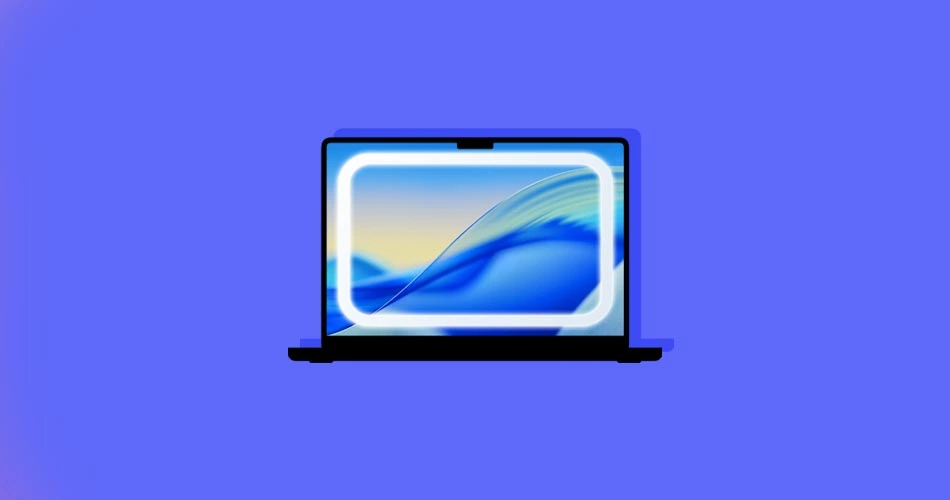
Edge Light turns your Mac’s display into a smart, built-in ring light. Instead of relying on desk lamps or awkward lighting setups, your Mac subtly brightens your face using the screen itself. The result is a more evenly lit video call, especially in darker rooms.
Here’s how Edge Light works and how to turn it on.
What Is Edge Light on macOS
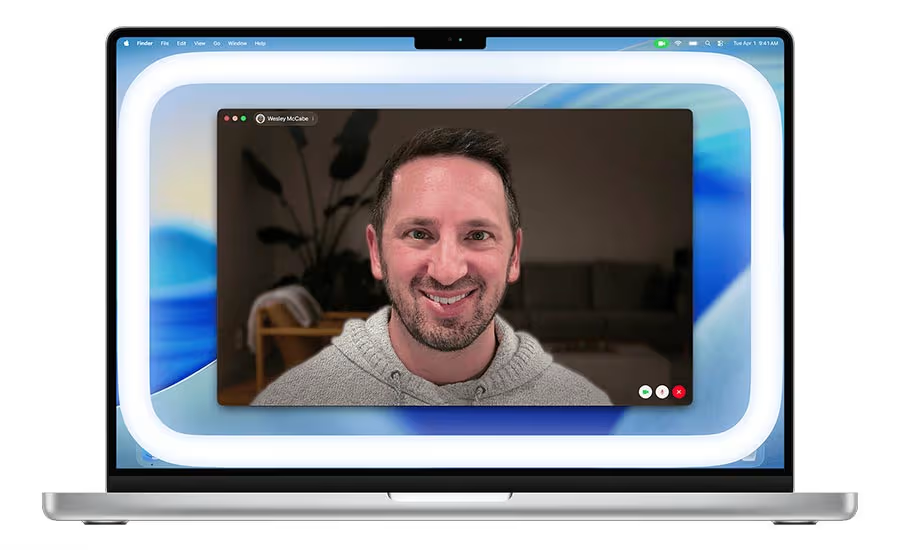
Edge Light adds a soft glow around the edges of your Mac’s display during video calls. Unlike basic screen brightness tricks, this feature is intelligent.
macOS uses the Neural Engine to analyze your face, position, and distance from the camera. At the same time, the Image Signal Processor adjusts brightness based on your surroundings. The lighting adapts in real time, so it looks natural rather than harsh.
Apple also thought about usability. When your cursor moves toward the edge of the screen, Edge Light automatically pulls back so it does not interfere with menus or buttons.
Macs That Support Edge Light
Before you try enabling it, make sure your setup meets the requirements.
Edge Light works on:
- Any Mac with Apple silicon, including M1, M2, M3, and newer
- macOS Tahoe 26.2 or later
- All major video calling apps, including FaceTime, Zoom, WebEx, and others
- External cameras and Apple Studio Display when connected to an Apple silicon Mac
If your Mac was released in 2024 or later, you also get automatic Edge Light activation, which we will cover shortly.
How to Turn On Edge Light
Enabling Edge Light is quick and does not require digging through System Settings.
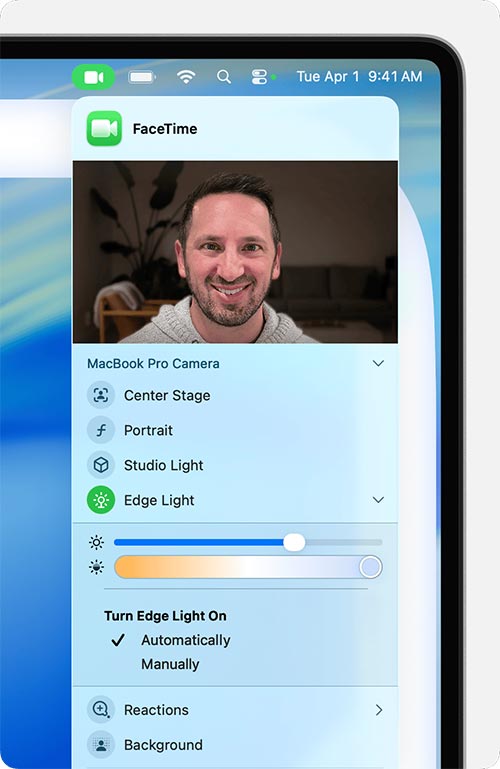
- Start a video call in a supported app like FaceTime or Zoom
- Look at the menu bar at the top of your screen
- Click the green video conferencing icon
- Select Edge Light from the dropdown menu
Once enabled, you should immediately notice softer and more even lighting on your face.
Adjusting Brightness and Color
Edge Light is customizable, which is important because everyone’s lighting needs are different.
To fine-tune it:
- Click the small arrow next to Edge Light in the video menu
- Use the brightness slider to control intensity
- Use the warmth slider to adjust color temperature
A slightly warmer tone usually looks better for long calls, while cooler light can work well during daytime meetings.
Automatic Edge Light Activation
If you are using a newer Mac released in 2024 or later, Apple takes things a step further.
You can enable automatic Edge Light activation so macOS turns it on whenever it detects low lighting. This means no manual switching before calls.
To enable it:
- Open the video conferencing menu during a call
- Expand the Edge Light options
- Toggle the automatic activation setting located just below the sliders
Once enabled, Edge Light quietly works in the background whenever you need it.
Why Edge Light Actually Matters
This is one of those features that sounds minor but makes a noticeable difference. Not everyone has ideal lighting at their desk, and Edge Light removes friction from video calls without adding complexity.
It also shows Apple focusing on small quality-of-life improvements that people actually use, rather than flashy features that look good in demos but get forgotten.
If you take frequent video calls, Edge Light is absolutely worth turning on.