


Sending someone’s phone number doesn’t need to be a chore anymore. If you’ve ever found yourself copying a contact from your address book then pasting it into Messages, WhatsApp, Mail, or Notes, there’s a smoother way built right into iOS.
Starting with iOS 17, Apple expanded AutoFill so you can insert contact info, passwords, and even text scanned from your environment directly into any text field on the system keyboard.
That means wherever you can type, you can tap AutoFill and pick a contact’s number to share, without having to share an entire contact card which often contains more information than required.
Here’s how to use it step by step.
1. Tap into a text field
Open the app where you want to share the number. This works in pretty much any place requring text input with a keyboard:
- Messages
- iMessage
- Notes
- Slack or other chat apps
Just tap the area where you type so the keyboard appears.
2. Tap the AutoFill button
Above the keyboard or in the toolbar, you’ll see a small AutoFill button or prompt. If you don’t see anything right away, try tapping the text field again or long pressing until the menu appears.
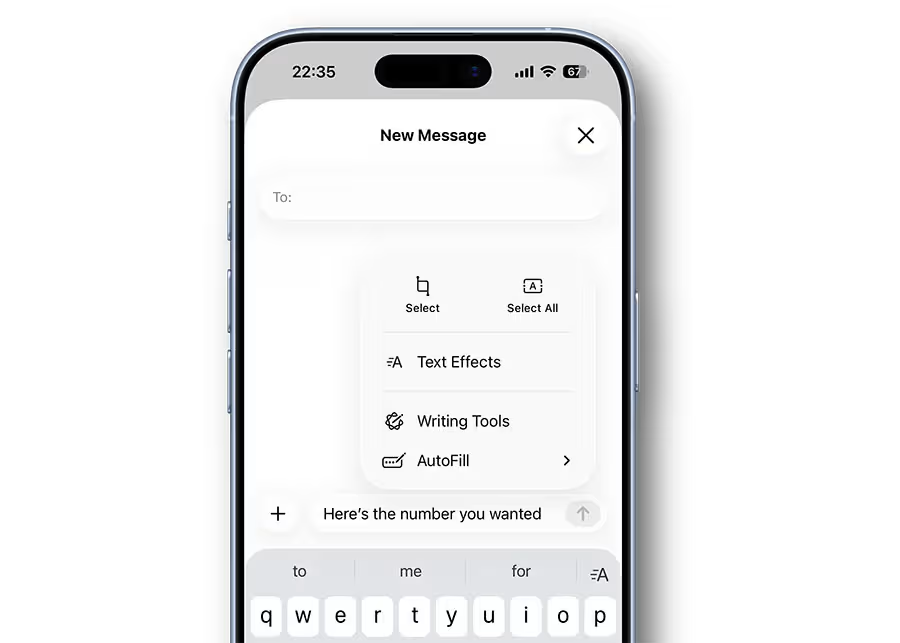
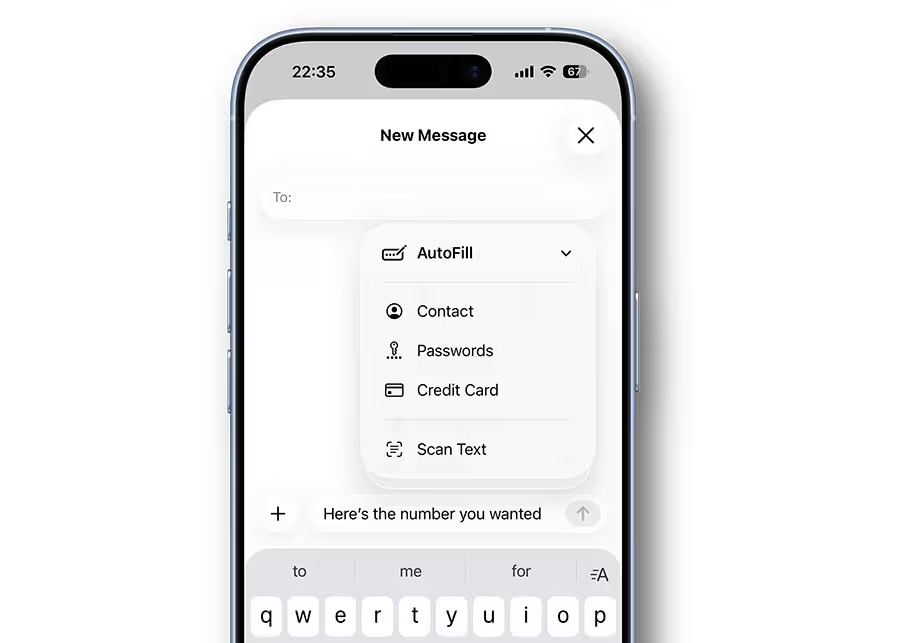
Once you do, a menu shows options like Contact, Passwords, Credit Card, and Scan Text.
3. Choose Contact
Tap Contact from the AutoFill menu. Your contacts list will appear.
From here, your iPhone shows all names you’ve saved. You can scroll or use the search bar to find the person whose number you want to send.
4. Select the number to share
Tap the contact, then tap the specific phone number you want to share. This can be an email address, or even a postal address, and it’ll be placed into your message. AutoFill instantly inserts that information into the text field as plain text.
Now it’s ready to send just like any other message.
5. Send and you’re done
Once the number appears in your message, email, or note, hit Send or Done just like normal.
No typing, no switching apps, no copy and paste.
Bonus: Scan text with AutoFill
AutoFill also gives you a Scan Text option, which uses iPhone’s Live Text technology. That lets you aim your camera at printed text — like a business card or a poster — and drop that text straight into the message.
To use it:
- Tap AutoFill above the keyboard
- Tap Scan Text
- Point your camera at the printed number or text
- Select what you want
- Tap Insert
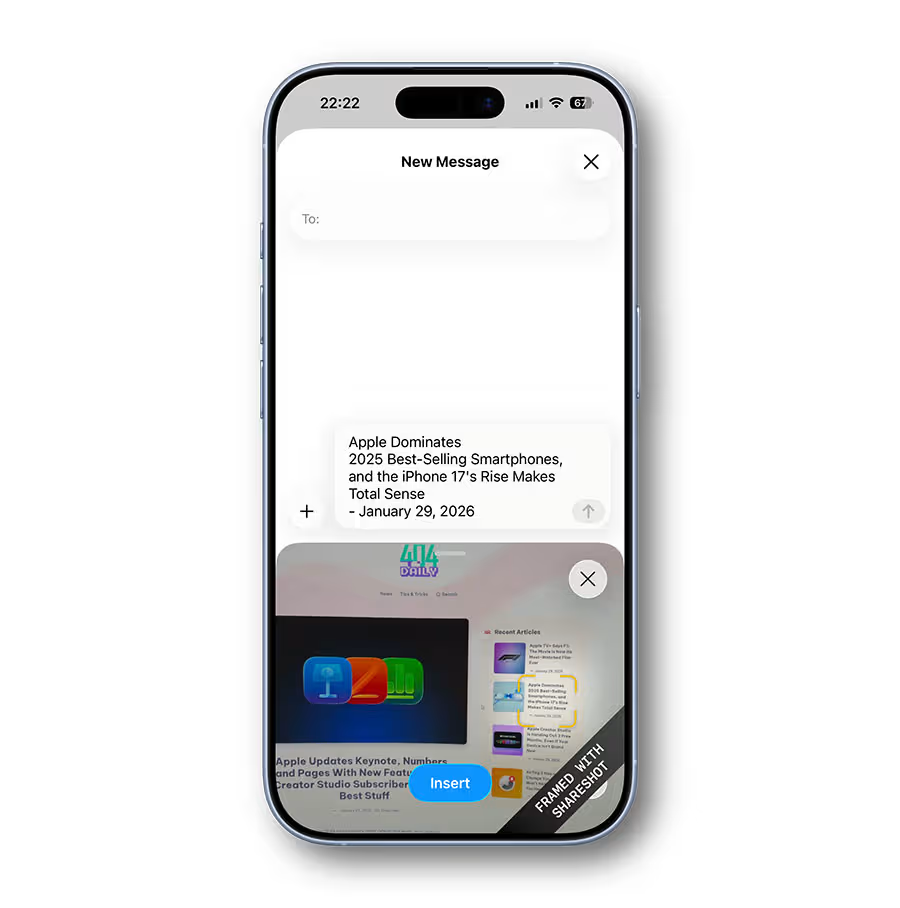
Live Text works everywhere you can type, making this great for grabbing phone numbers or emails you’d otherwise have to type by hand.
Why this feature might feel new
This trick slipped under the radar for many because it wasn’t marketed with flashy banners, and it lives in the text input UI that users don’t always explore. New iPhone adopters are likely to have missed it.
Even though iPhones have had AutoFill for web forms for years, the expanded AutoFill menu in the keyboard which lets you get contacts, passwords, and scanned text anywhere you type, was introduced with iOS 17.
Because it lives in the keyboard UI instead of Settings or an app, many users miss that it’s there. Once you know it exists, you’ll wonder why you ever typed out numbers manually.

![Can You Easily Repair the MacBook Neo? Teardown Reveals a Surprisingly Repair-Friendly Design [U]](https://404daily.com/wp-content/uploads/2026/03/macbook-neo-easy-to-repair-300x158.webp)