
If you just got your hands on the iPhone 17, welcome to the club. Apple’s latest is packed with exciting new features. From the once-Pro-only 120Hz ProMotion display on the base iPhone 17 to the high-end ProRes RAW and GenLock on the Pro models, there’s plenty to explore.
And with iOS 26, Apple’s introduced Liquid Glass and other subtle UI updates that make your iPhone feel fresher than ever. Whether you’re upgrading from last year’s model or jumping into the iPhone ecosystem for the first time, this guide will walk you through all the tips, tricks, and hidden features you need to make the most of your new device.
1. Customize your Lock Screen clock
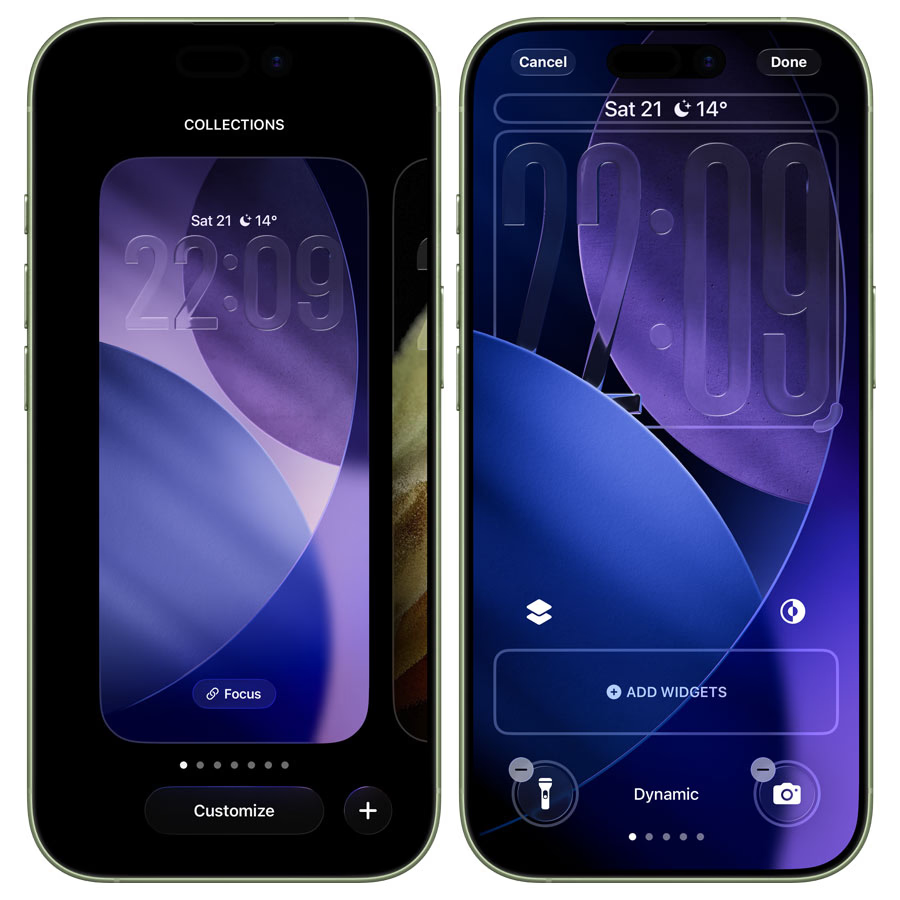
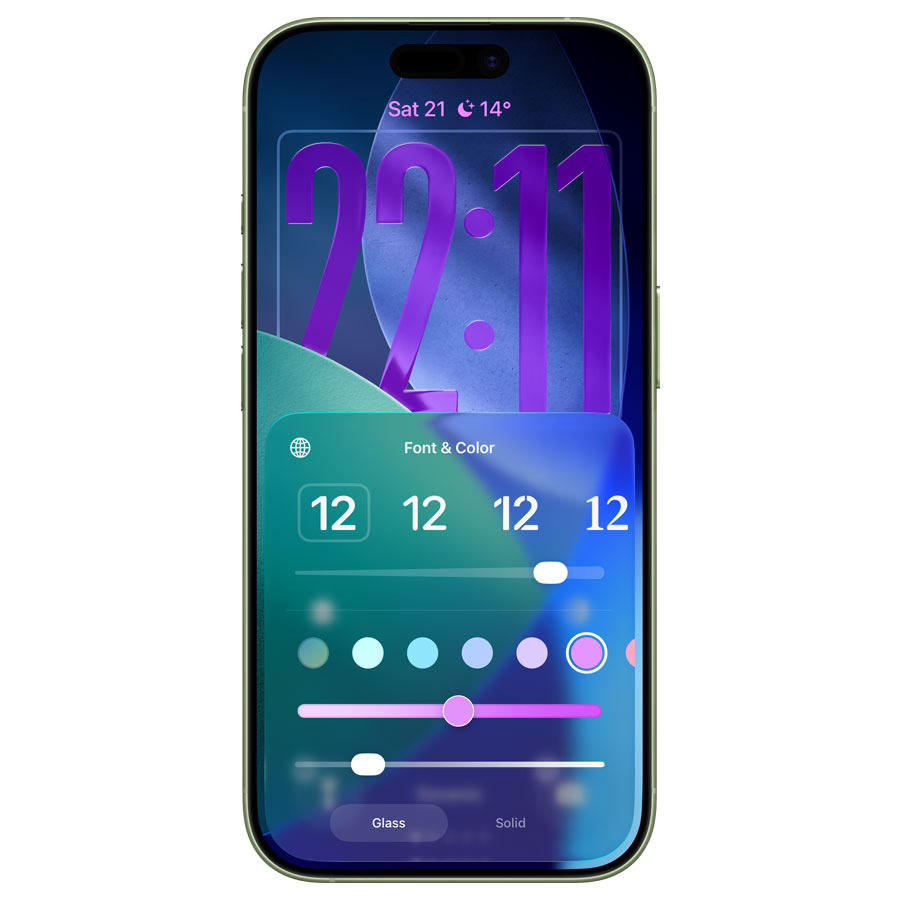
iOS 26 takes lock screen customization to the next level. You can now resize your clock, pick fonts and colors, and choose between Liquid Glass or the classic flat look. Pair this with Always On Display for a sleek and functional front-and-center view of the time.
How to do it:
- Press and hold a blank area on your lock screen until the wallpaper zooms out.
- Tap Customize at the bottom. Bounding boxes appear around elements you can edit.
- Tap the clock’s grab handle in the bottom right and drag it to resize.
- Tap the clock again to adjust Font, Color, and Glass/Solid toggle.
Pro tip: Don’t be afraid to experiment. The Liquid Glass clock can look surprisingly elegant on certain wallpapers.
2. Spatial Scene lock screens
Ever wanted a mini-3D effect on your lock screen? iOS 26 introduces Spatial Scenes, which make certain photos pop with a parallax effect.
How to set it up:
- Go to Settings > Wallpaper > + Add New Wallpaper.
- Tap the Photos icon and select your image.
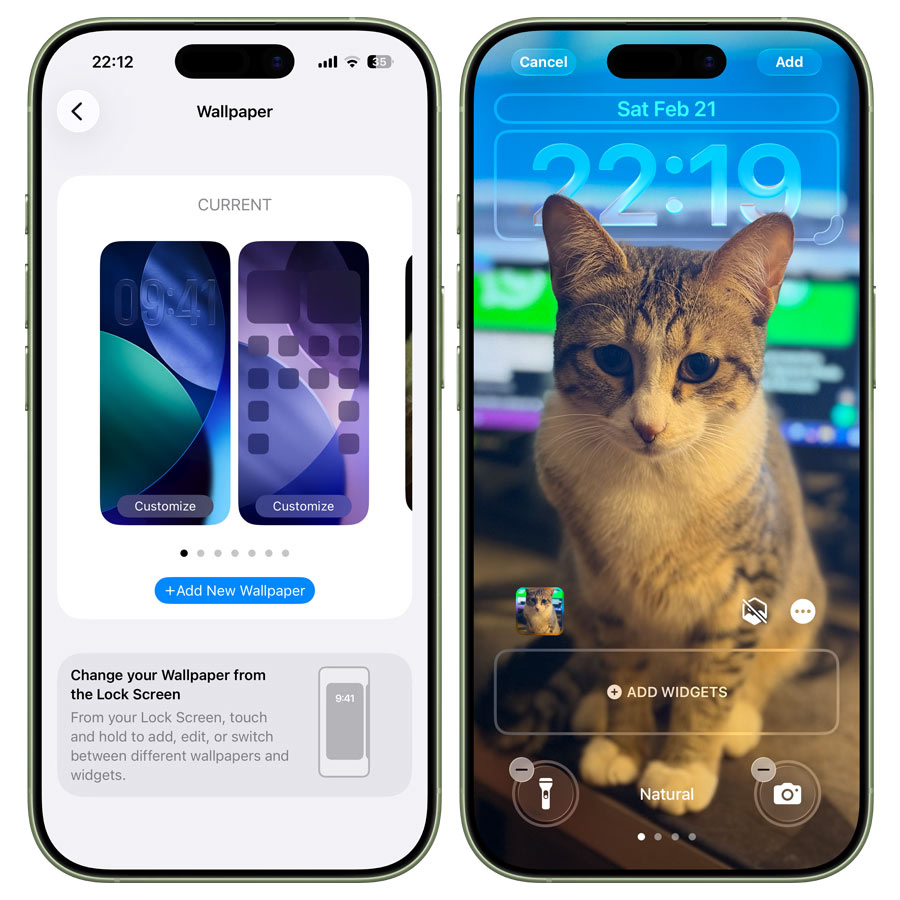
- Look for a small hexagon icon with a strikethrough at the bottom right. Tap it to enable Spatial Scene.
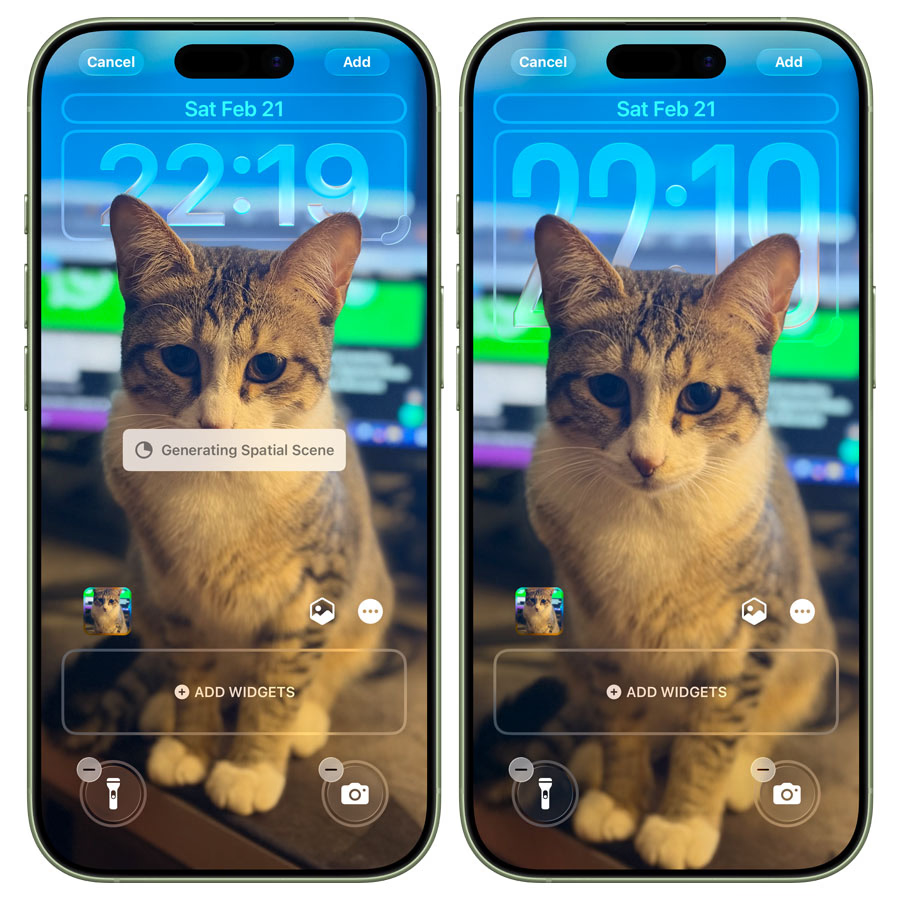
- Tap Add > Set as Wallpaper Pair.
Tilt your phone, and voilà, your lock screen comes to life.
Tip: Only works on the lock screen. Home screen images stay static. You’ll need to re-enable it if you change wallpapers or activate a Focus mode.
3. Preview Spatial Scenes in Photos
Want to test Spatial Scene effects before committing to a wallpaper?
- Open Photos, pick a compatible image.
- Tap the hexagonal icon on the top right.
- Tilt your iPhone to see the effect.
It’s a fun way to experiment with all your favorite shots without changing your wallpaper constantly.
4. Make haptics feel snappier
Apple’s Taptic Engine has been a game-changer, but did you know you can tweak Haptic Touch for even faster response?
How:
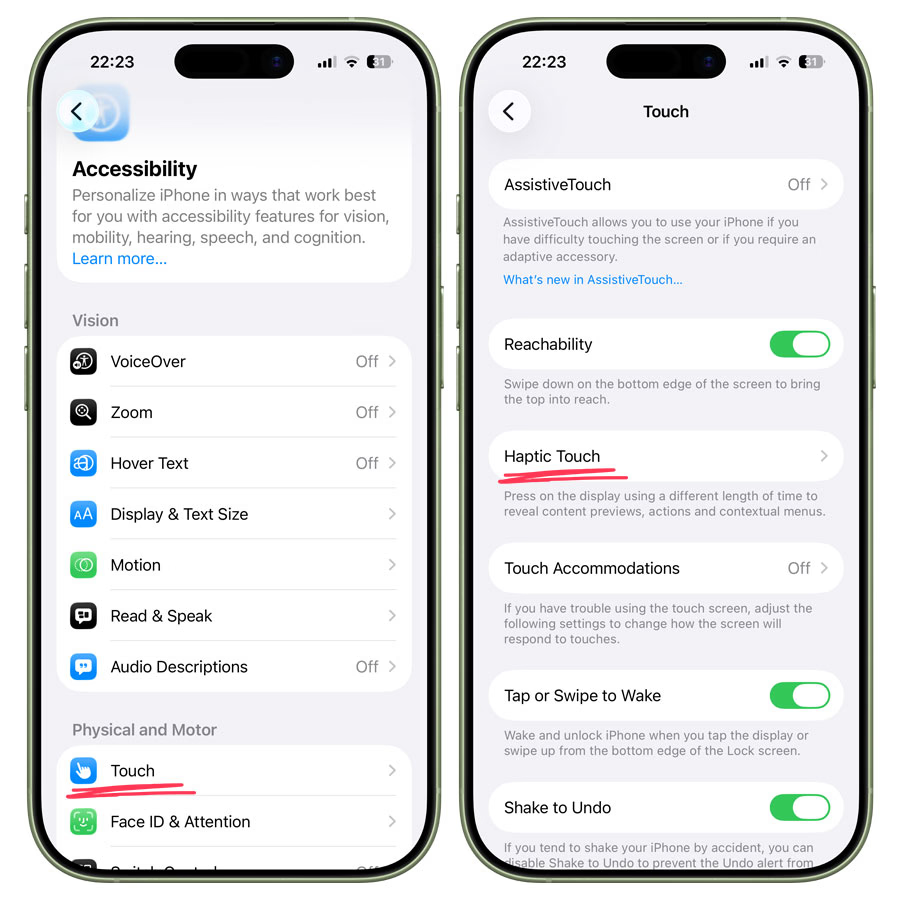
- Go to Settings > Accessibility > Touch > Haptic Touch.
- Try the Fast option (or experiment with the others).
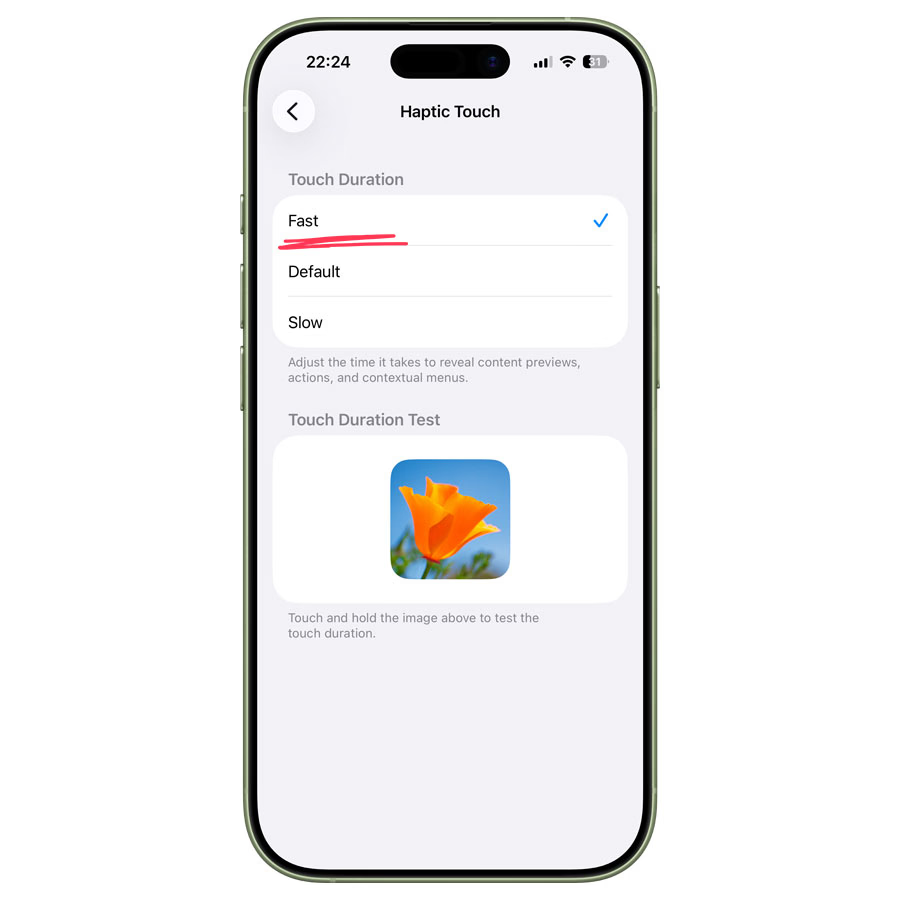
- Test using the button below the settings to feel the difference.
It’s a subtle change, but your iPhone suddenly feels more responsive in everyday use.
5. Hidden keyboard shortcuts
iOS keyboards hide some surprisingly useful tricks:
- Quick capitals: Long-press Shift and drag to the letter.
- Quick numbers: Long-press the numbers key, drag, release.
- Trackpad cursor movement: Long-press the spacebar to scrub text.
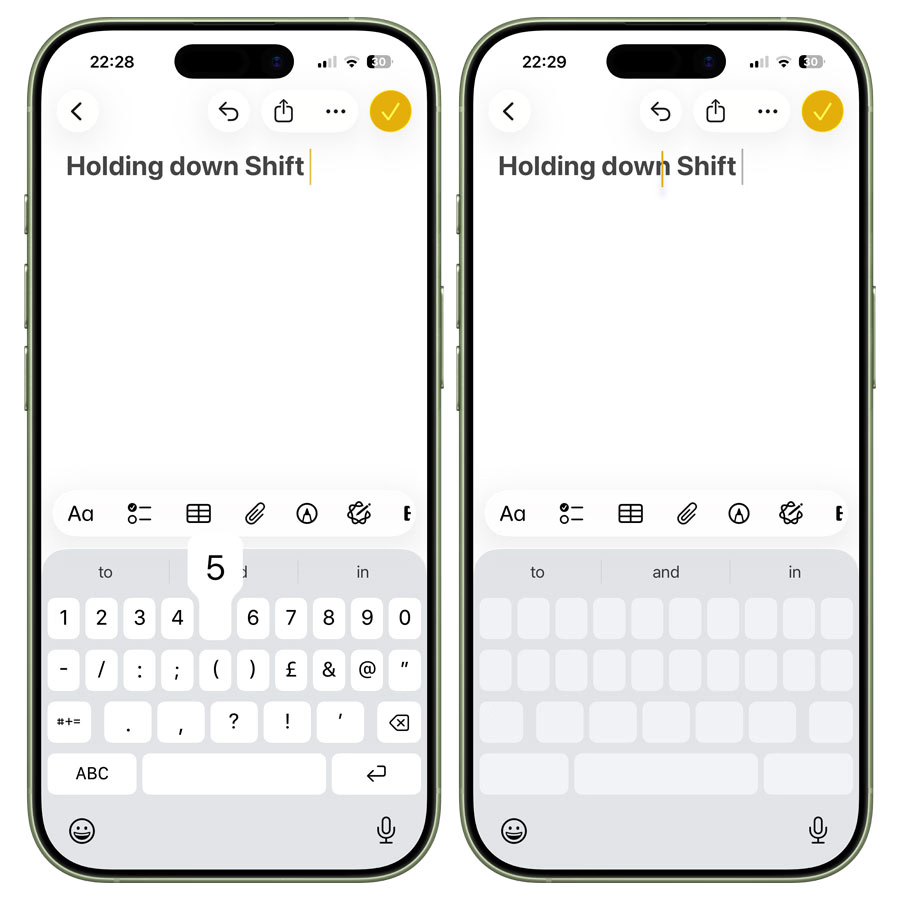
- One-handed layouts: Long-press the emoji key and choose left/right compact keyboard.
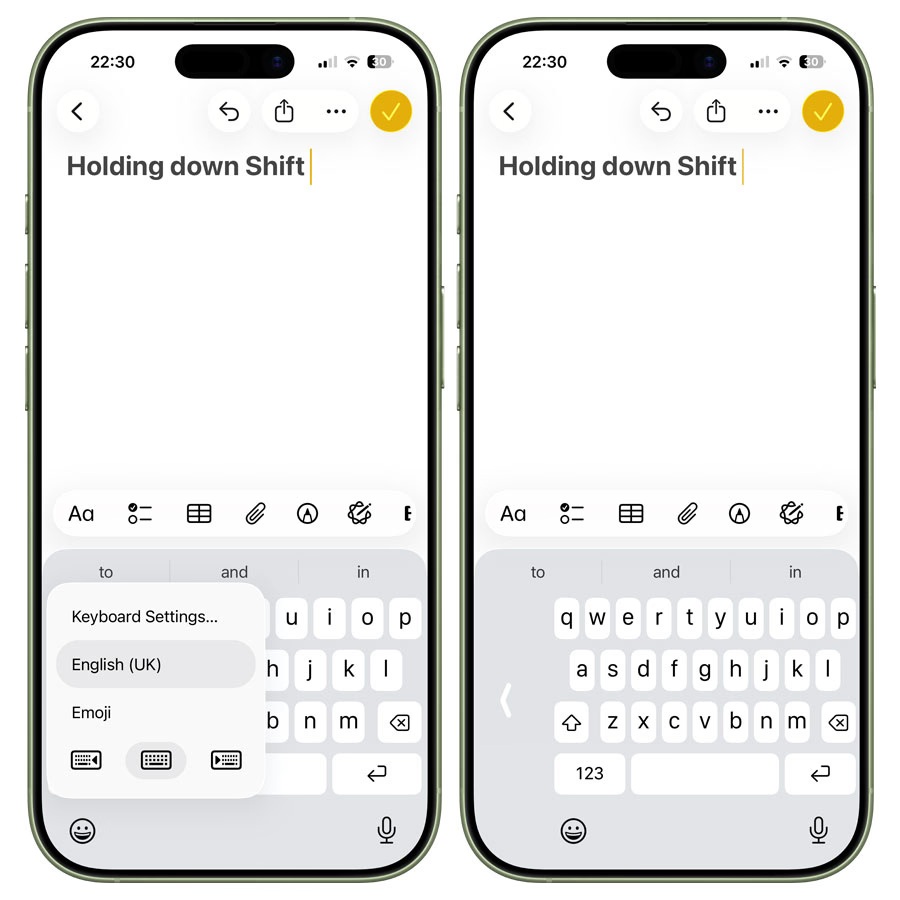
These gestures are a lifesaver for fast typing and editing on the go.
6. Disable Control Center on Lock Screen
Control Center is handy… until someone steals your iPhone. Airplane Mode is just a swipe away on the lock screen, which can cut off Find My iPhone tracking.
How to secure it:
- Settings > Face ID & Passcode > Allow Access When Locked.
- Toggle Control Center off.
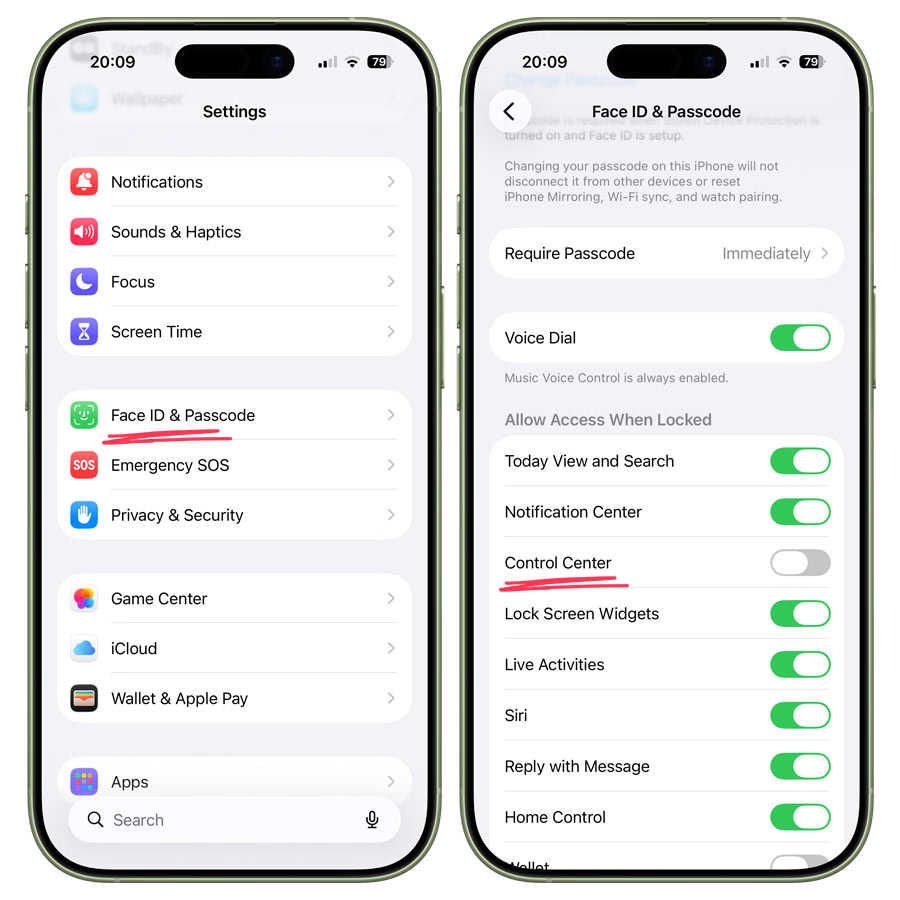
Your phone stays safer at the expense of a tiny swipe convenience.
7. Custom ringtones
Want your iPhone to sound like you? It’s easier than you think.
How:
- Download a ringtone (.mp3 or .m4a) to Files.
- Long-press the file > Share > Use As Ringtone.
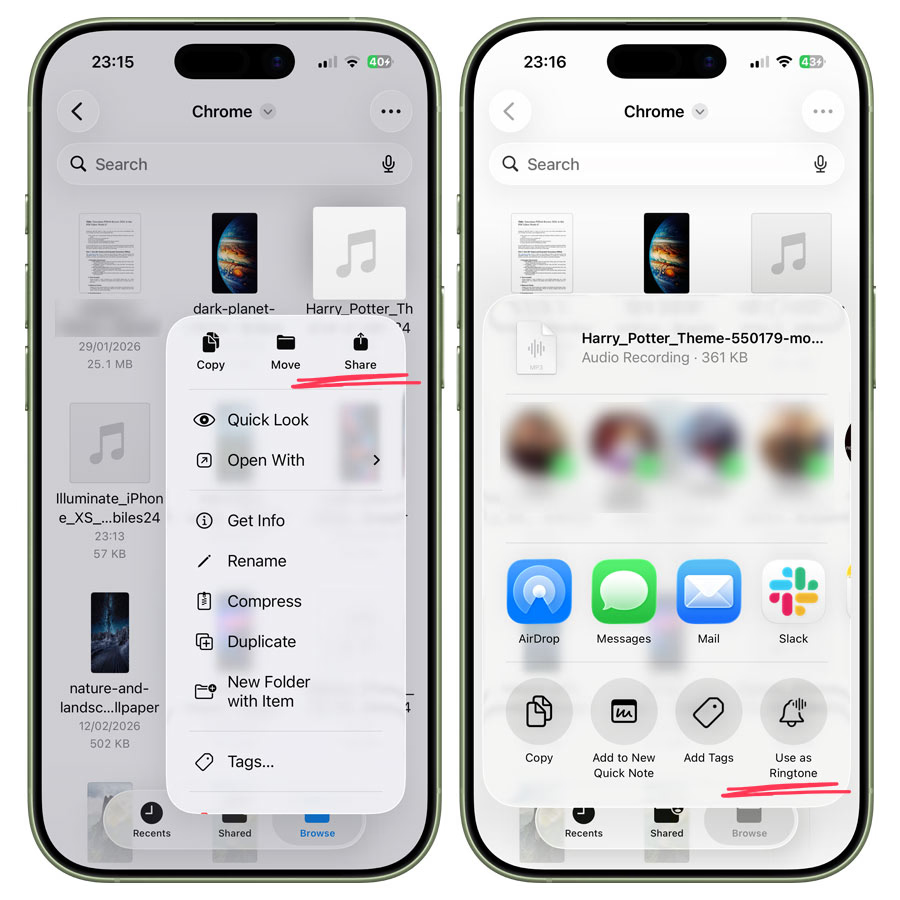
Keep it under 30 seconds for it to work.
8. Battery tweaks: percentage, charge limit, and Adaptive Power
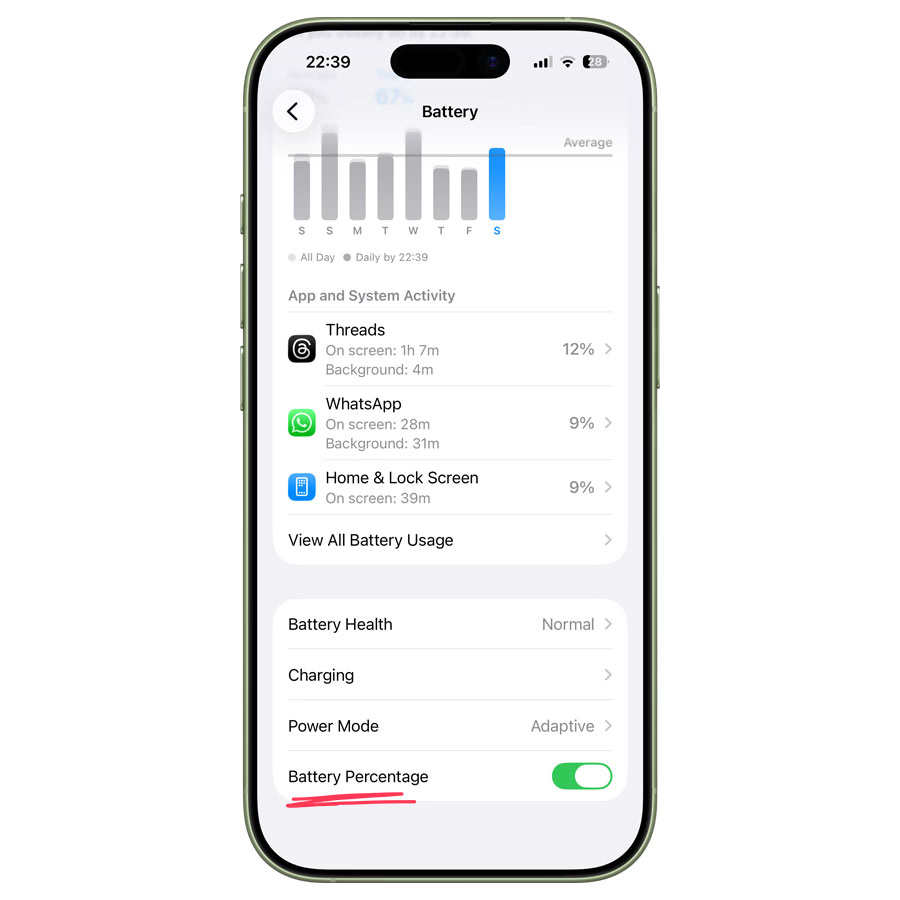
Battery Percentage: Keep tabs on your exact charge. Settings > Battery > Battery Percentage.
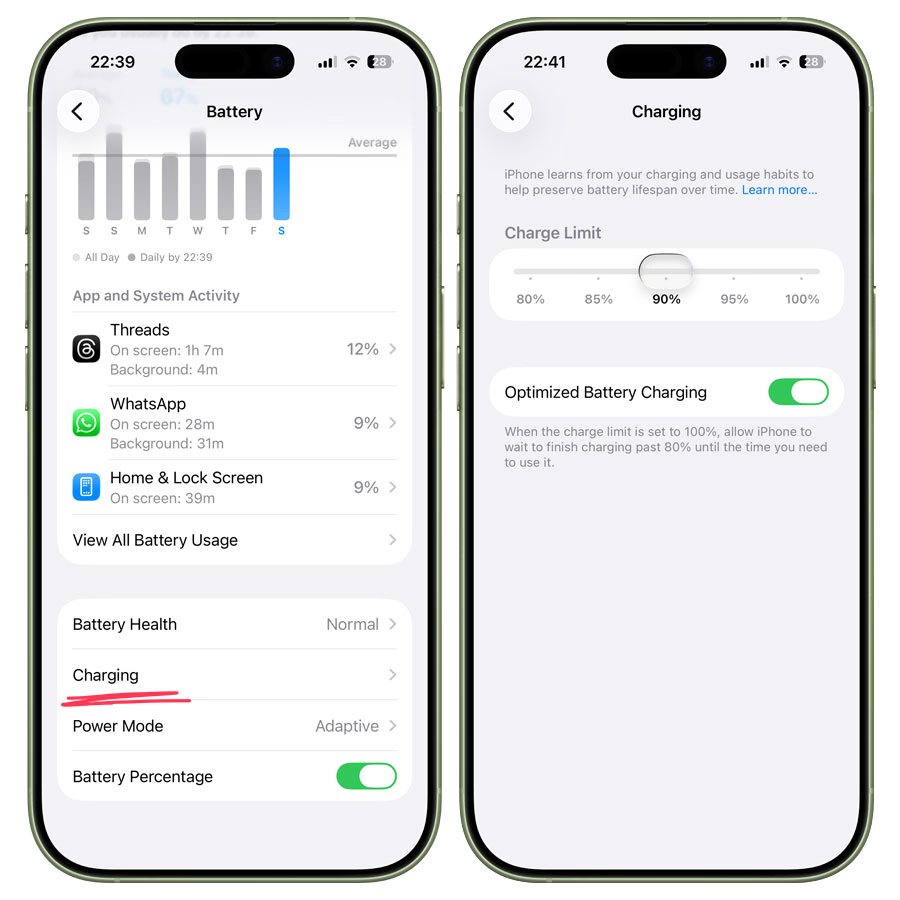
Charge Limit: Preserve long-term battery health by limiting full charge. Settings > Battery > Charging > Charge Limit. Aim for 80% if you want maximum lifespan.
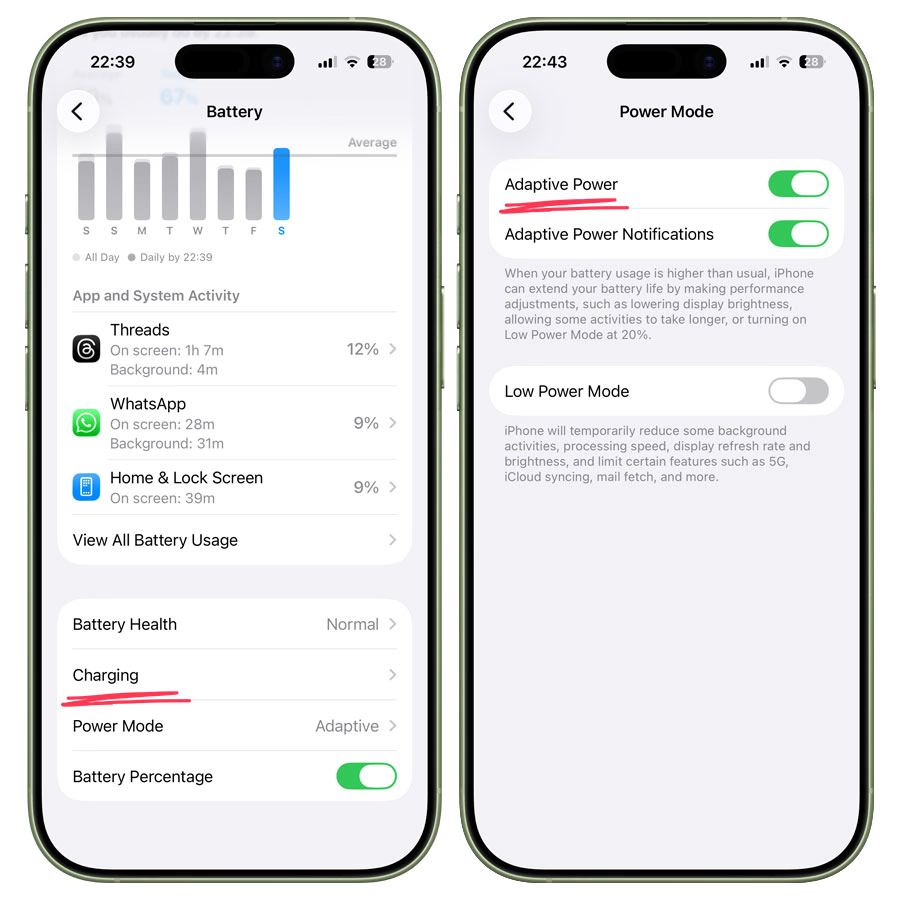
Adaptive Power Mode: iOS 26 can now automatically adjust brightness and performance for battery longevity. Settings > Battery > Power Mode > Adaptive Power.
BONUS TIP: With iOS 26.4, you can use the Shortcuts app to automatically control the battery charge limit on your iPhone 17 based on specific triggers.
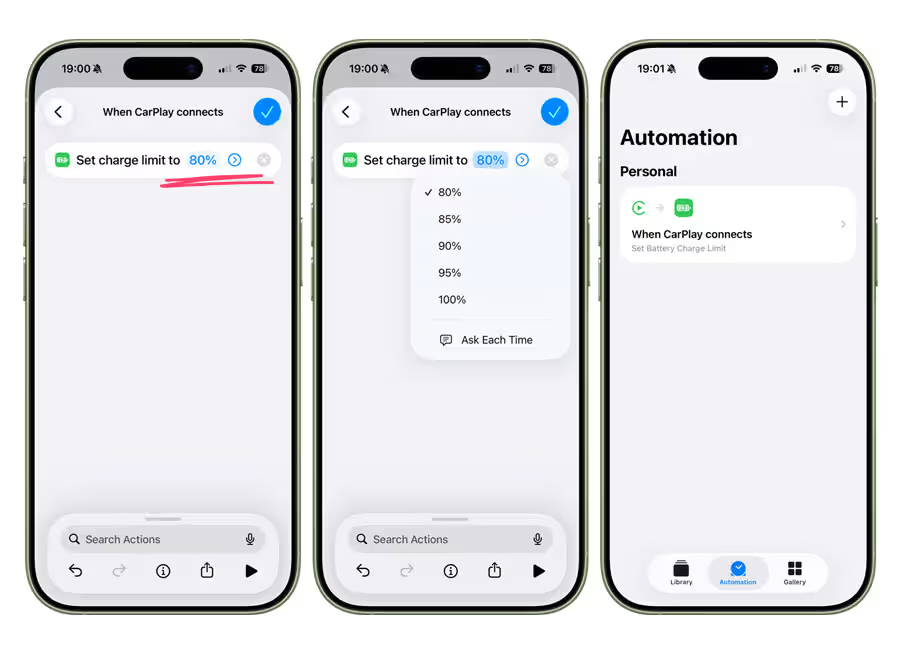
For instance, if you regularly charge your phone in the car while connected to CarPlay, you can create an automation that caps charging at a set percentage when CarPlay connects, and restores full 100% charging once it disconnects.
Here’s how: How to Use the New Set Battery Charge Limit Shortcut in iOS 26.4
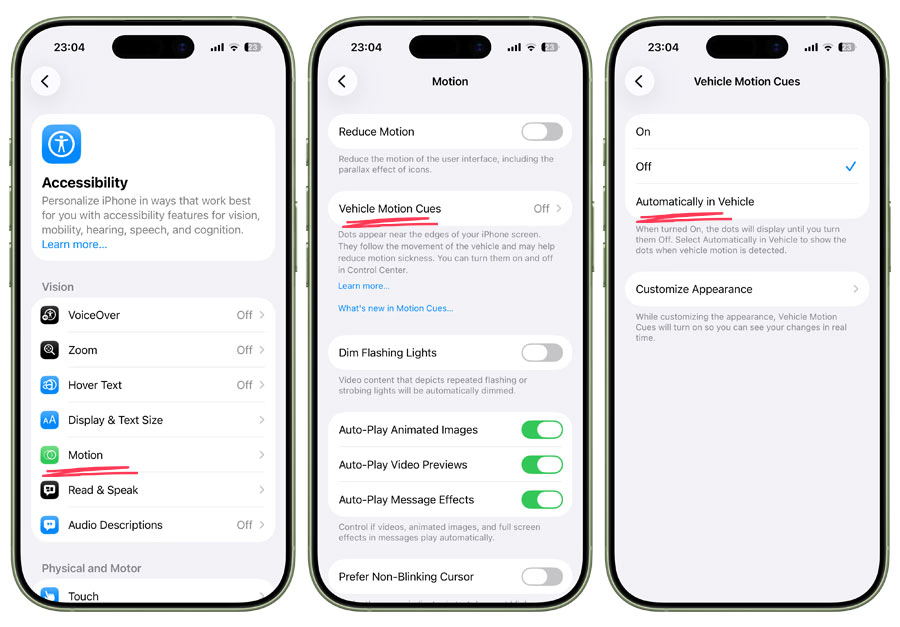
9. Vehicle Motion Cues
Feeling queasy scrolling in a moving car? Motion Cues adds little dots that help your brain compensate for motion and reduce nausea.
How:
Settings > Accessibility > Motion > Automatically in Vehicle. Customize dots’ size, color, and number.
10. Make Apple Intelligence smarter with ChatGPT
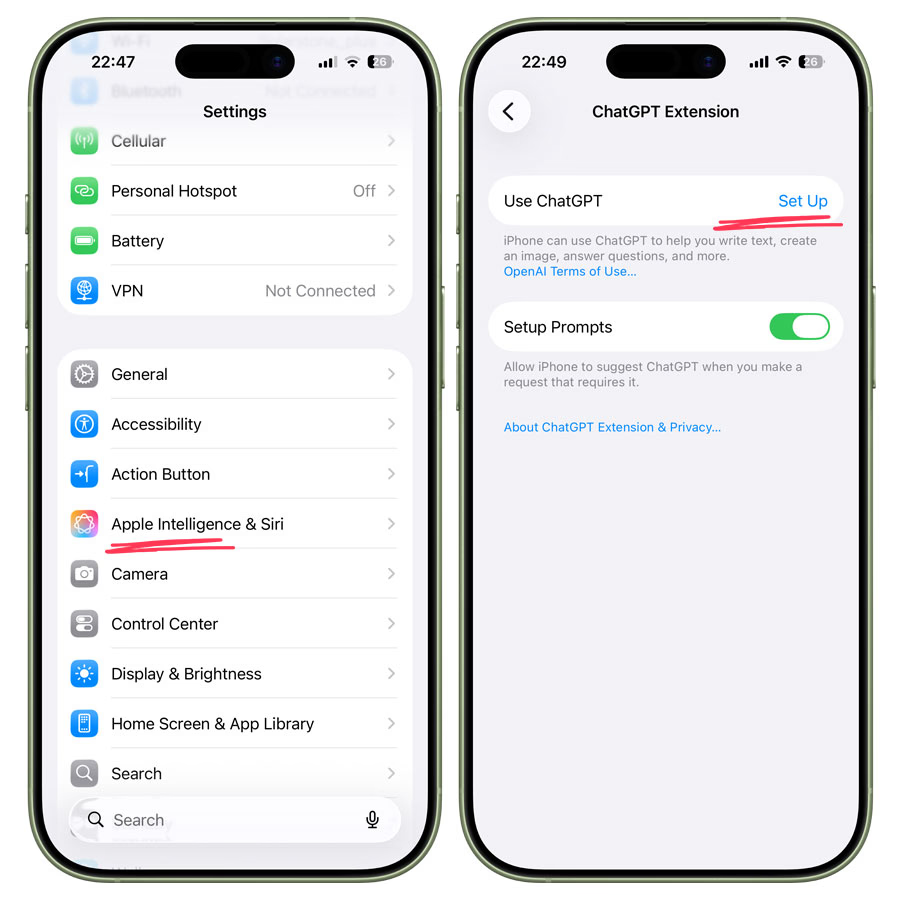
Apple’s AI has historically been… meh. Now you can integrate ChatGPT for smarter suggestions and results.
Here’s how:
Settings > Apple Intelligence & Siri > Extensions > ChatGPT Set Up > Enable ChatGPT.
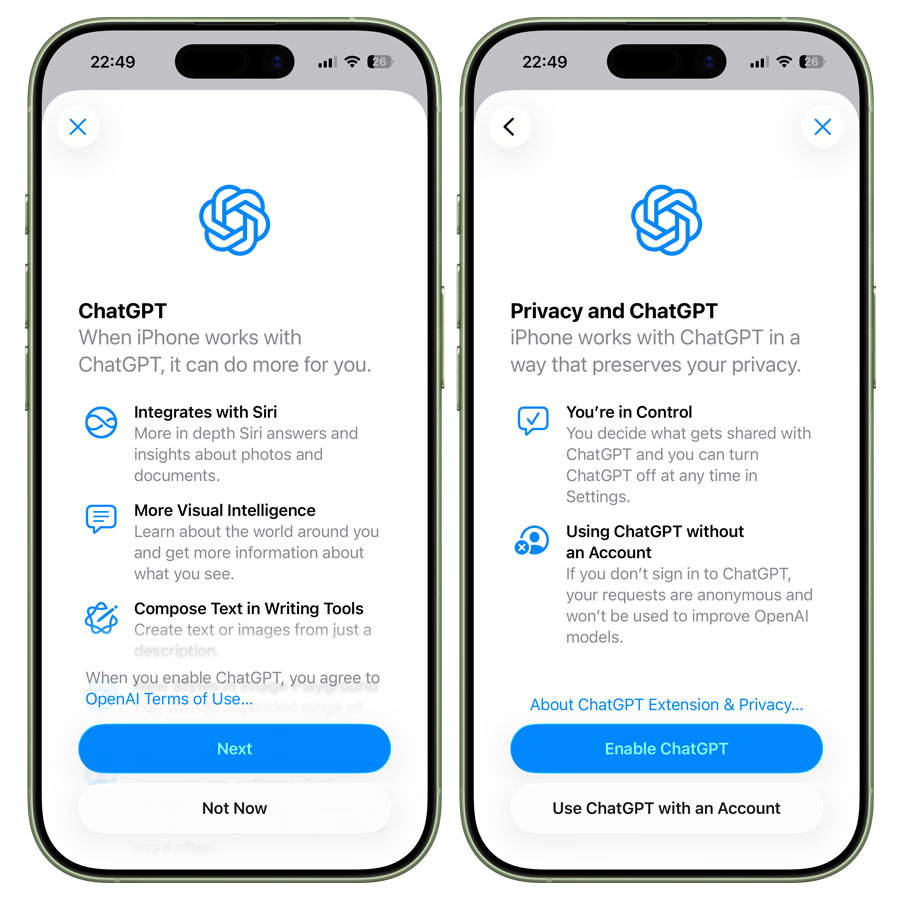
No app needed, just tap and go.
11. Video and camera Tips
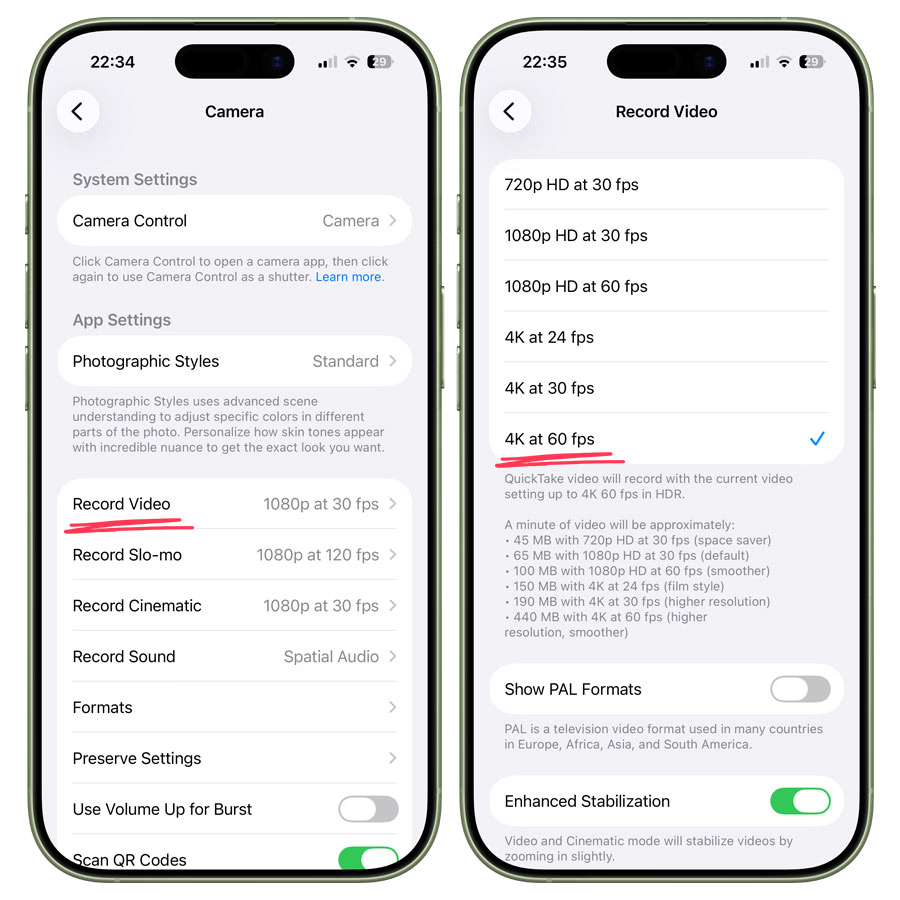
4K 60fps by default: Settings > Camera > Record Video > 4K at 60fps. This ensures cinematic-quality footage every time.
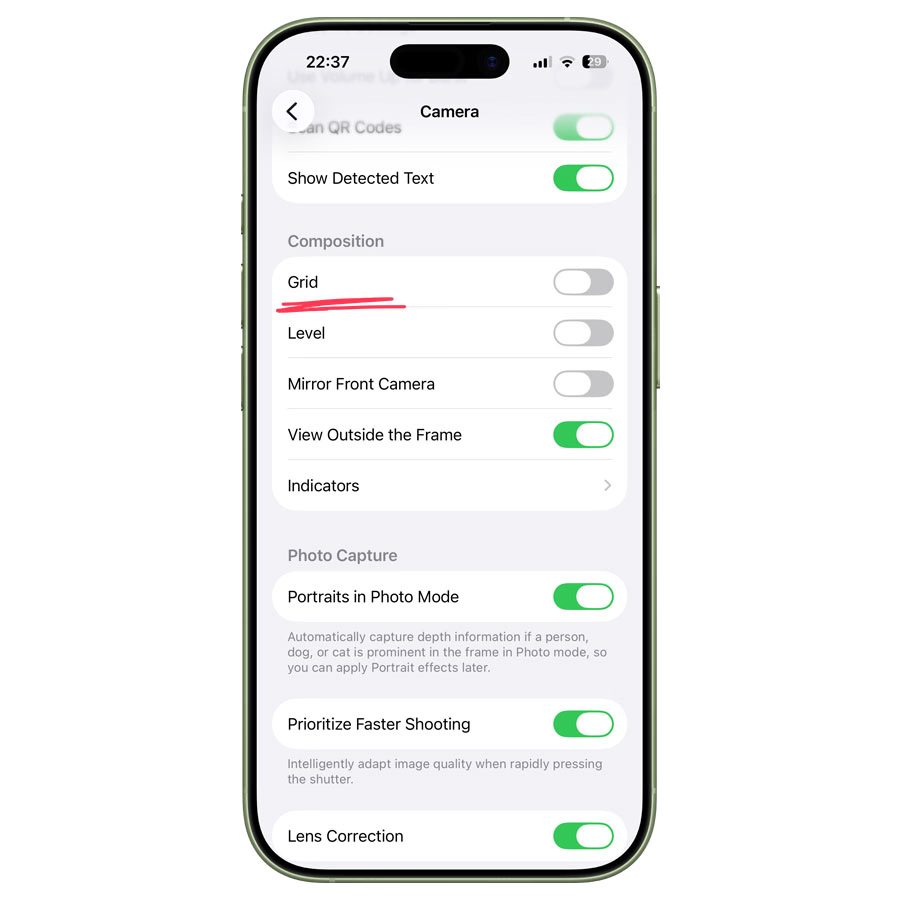
Add Grid and Level: Helps with framing shots perfectly. Settings > Camera > Composition > Grid + Level.
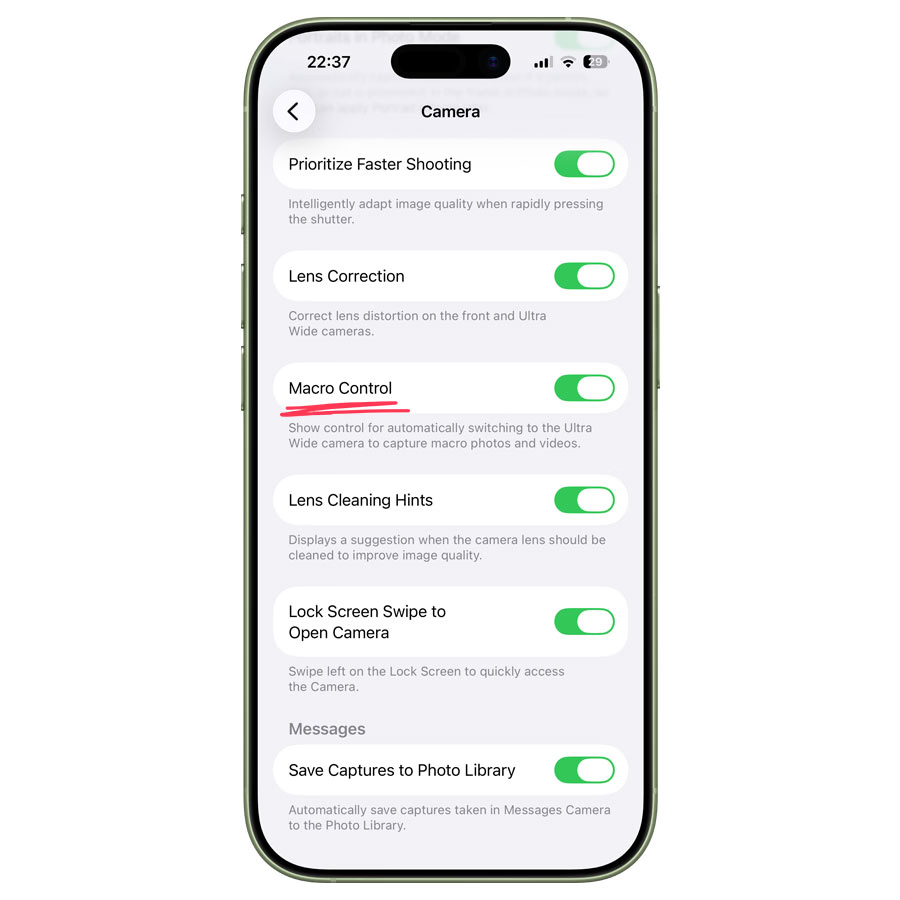
Disable Macro Control: Avoid auto-switching to the ultrawide lens for close-ups. Settings > Camera > Macro Control > Off.
BONUS TIP: iOS 26.4 quietly added a new Audio Zoom option for video recording to the Camera app. This lets your iPhone focus sound on whatever you zoom in on while recording video.
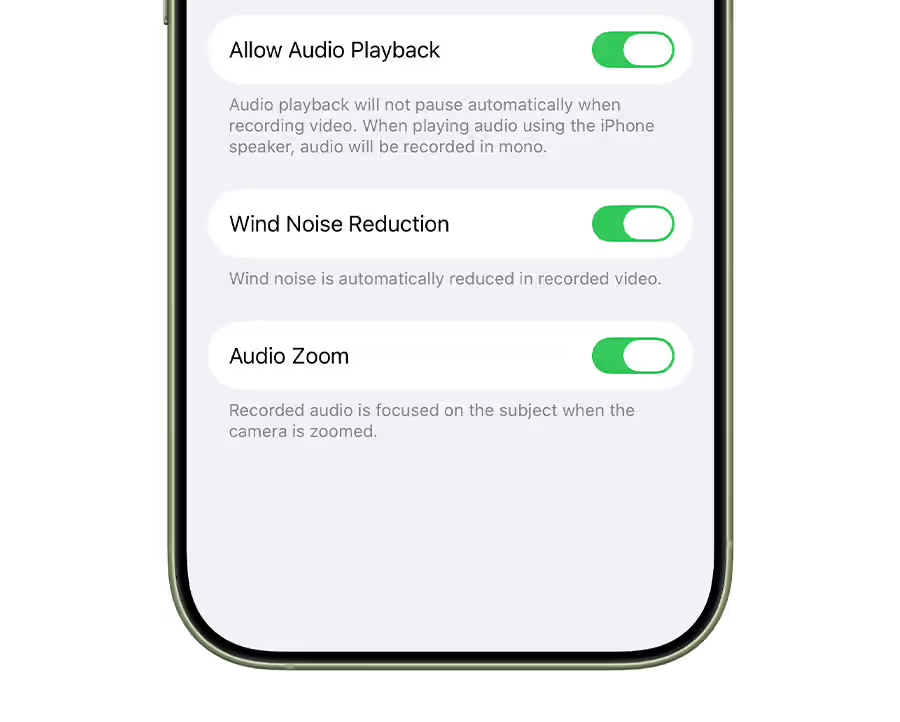
You can find this in Settings > Camera > Record Sound > Audio Zoom.
Additional iPhone 17 tips and tricks
- Send a Phone Number on iPhone Without Copy-Paste or Sharing a Full Contact Card
- How to Use Back Tap on iPhone 17 in iOS 26 (Secret Shortcut Feature)
- How to Make Your iPhone Flash the Screen for Notifications in iOS 26.2
- iOS 26.2 AirDrop Codes: How to Share Files Without Adding Contacts
- How to Restart iPhone 17 Pro, iPhone 17, and iPhone Air
- How to Restart iPhone 17 Pro, iPhone 17, and iPhone Air (Normal + Force Restart)
Wrapping Up
iPhone 17 isn’t just a phone. It’s a tiny powerhouse in your pocket. With these tweaks, you’ll make the most of iOS 26, enhance battery life, level up your camera game, and even stay safe from would-be thieves.
Start with lock screen personalization, play around with haptics, explore hidden keyboard gestures, and experiment with Spatial Scenes. These small changes make your iPhone feel like it was truly built just for you.