
With iOS 26.4, Apple has given Shortcuts a genuinely useful new action: you can now set your iPhone’s battery Charge Limit directly from a shortcut.
Previously, Charge Limit could only be adjusted manually in Settings. Now you can automate changes based on things like CarPlay, Daily routines, or other triggers using Shortcuts.
This makes long drives and daily charging habits much easier to manage without opening the Battery settings every time. Here’s how to set it up yourself.
What this Shortcut does
Charge Limit lets you tell your iPhone to stop charging once it hits a specific percentage. On supported devices (iPhone 15 and later), you can pick a target between 80% and 100% to help protect battery health over time.
In iOS 26.4 beta, Shortcuts can change this setting automatically for you.
For example:
- Set Charge Limit to 80% when connected to CarPlay
- Raise it to 100% when you leave the car
- Lower it at night or during long work sessions
- Increase it before a trip
This level of automation gives real control over how and when your phone charges.
Suggested: iOS 26.4 Beta 1 Features: Playlist AI, Video Podcasts, RCS Encryption, and Security Updates
Setting up a Battey Charge Limit Shortcut
Here’s a step-by-step walkthrough. In my case, i’ll be using connecting to CarPlay as the trigger.
1. Open the Shortcuts app
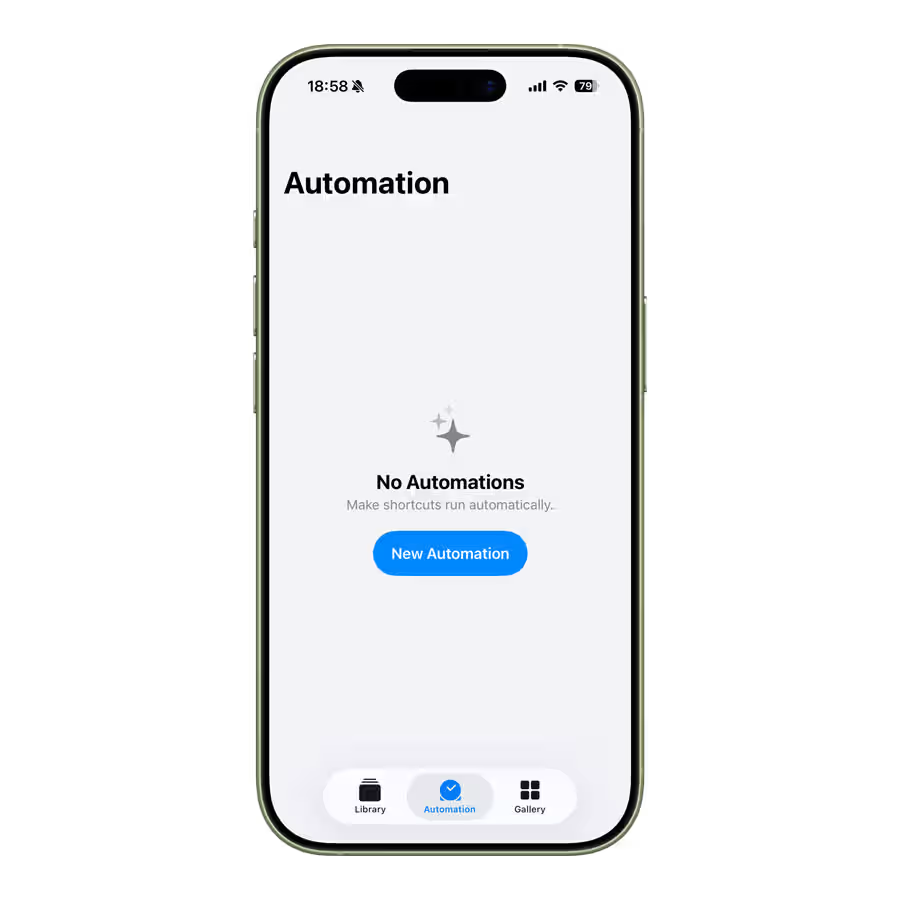
Launch Shortcuts, tap the Automation tab at the bottom and hit the the “New Automation” button in the center.
3. Choose CarPlay as the trigger
Scroll down and select CarPlay.
- Choose Is Connected to trigger when CarPlay connects.
- Choose Is Disconnected to trigger when it disconnects.
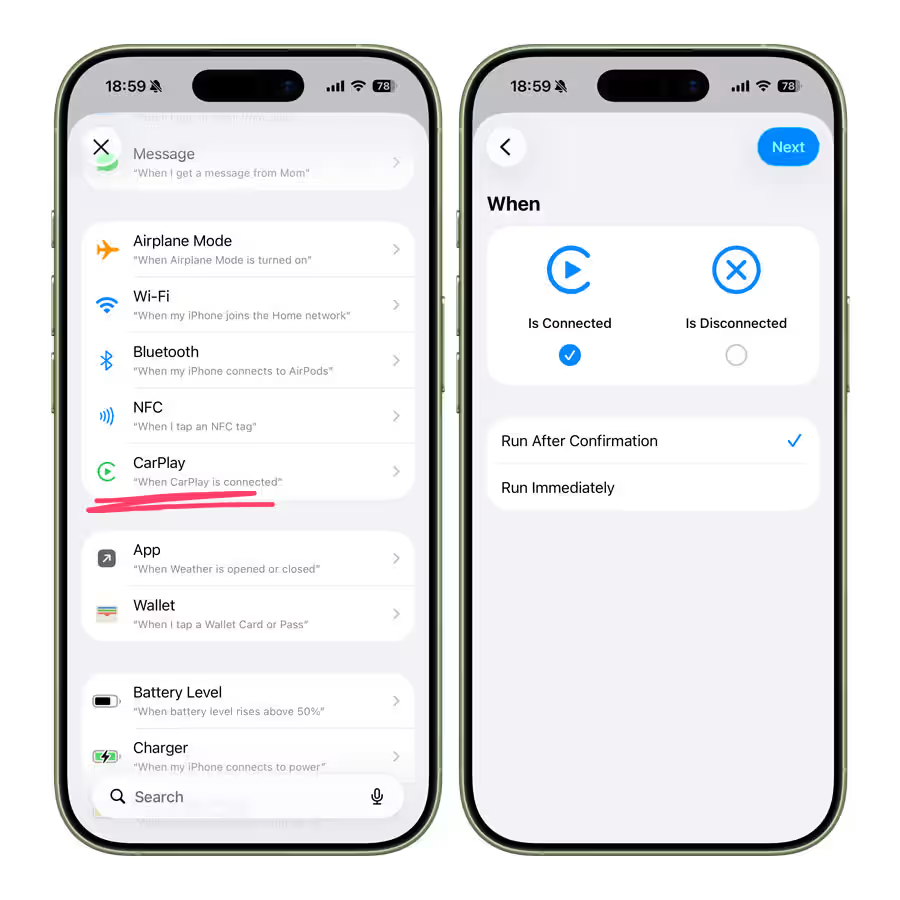
For this guide, start with Is Connected so your iPhone limits charging when you enter the car.
4. Add the Battery Charge Limit action
Tap Create New Shortcut and select the Controls button below the Search Actions field. Alternatively, you can also search for “Set Battery Charge Limit“.
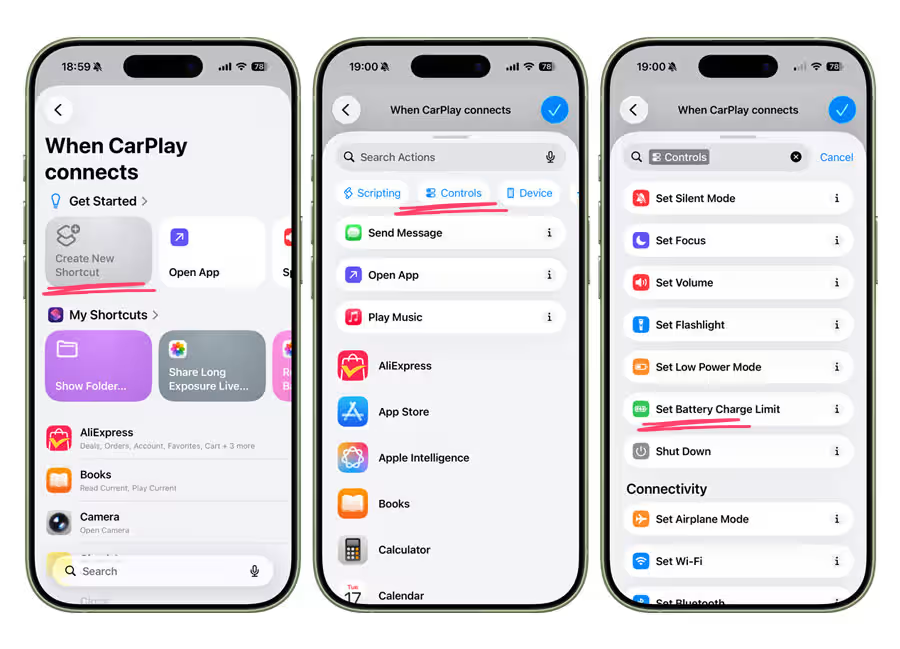
Select Set Battery Charge Limit.
5. Choose your target level
Pick a percentage like 80% that makes sense for heat and battery preservation while driving.
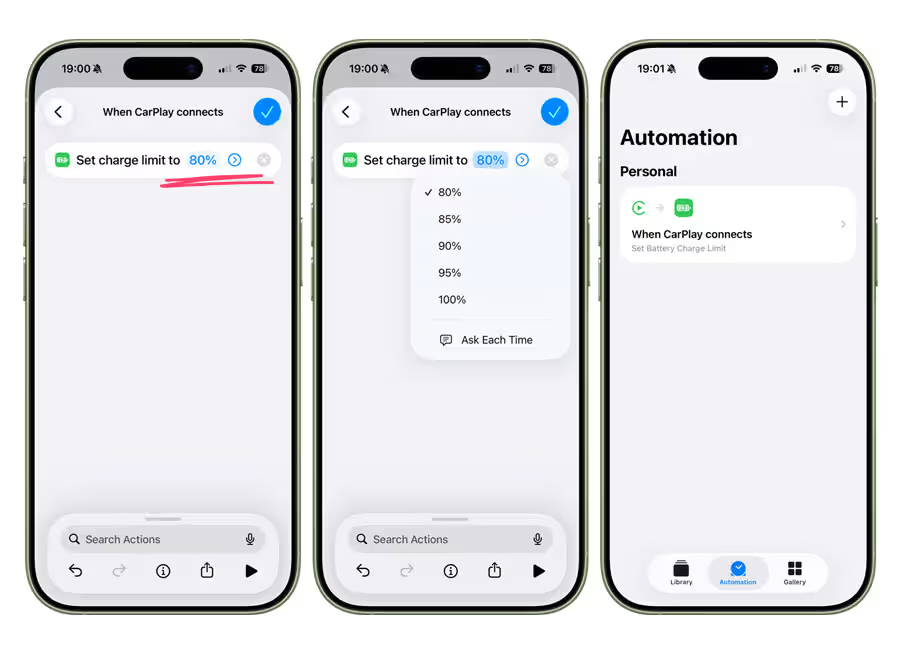
Tip: Disable “Ask Before Running”. Doing this will make sure it runs automatically without prompting you every time.
Optional: add a second automation
You can repeat the process for CarPlay Disconnects:
- Create a new automation
- Choose CarPlay > Is Disconnected
- Add “Set Charge Limit” again
- Choose a higher limit so your iPhone can fill up fully once you leave the car
This gives you two-stage logic: limit during driving, restore afterward.
Why this is useful
Connecting to CarPlay often means automatic charging via your car’s USB or wireless pad. On hot days or long trips, high battery percentages can accelerate battery wear. Automating Charge Limit around CarPlay is a small tweak that keeps your battery healthier longer, especially if you spend a lot of time behind the wheel.
This also works with other triggers: time of day, location (home vs office), Low Power Mode, or even focus modes.
Notes & tips
- Charge Limit automation only works on devices that support the setting (iPhone 15 and later).
- If Shortcuts doesn’t list Set Battery Charge Limit yet, make sure you’re running the latest iOS 26.4 developer beta.
- You can stack actions: for example, trigger Charge Limit and Low Power Mode together based on your context.