
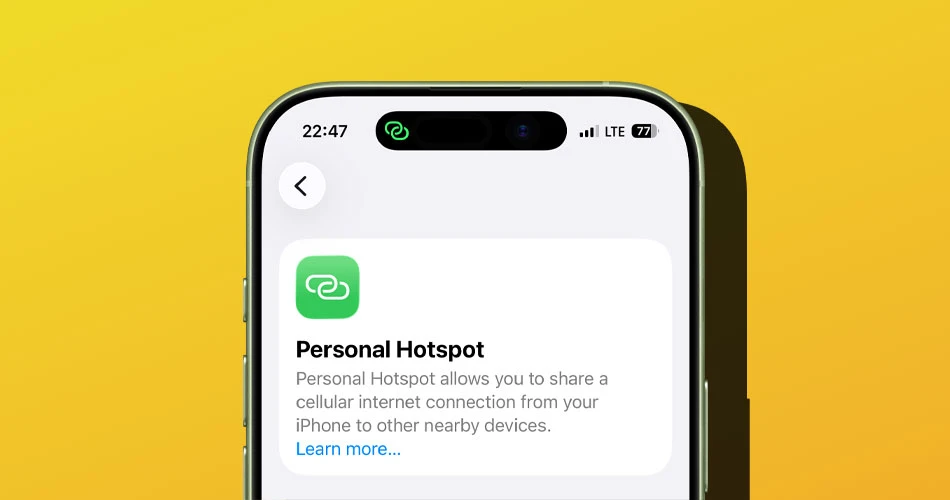
If you use your iPhone’s Personal Hotspot regularly, you’ve probably asked yourself at least once:
Which device is eating all my data?
With iOS 26.4, Apple finally makes it easy to find out. The latest update adds a simple way to check hotspot data usage per device, so you can see exactly how much data your iPad, MacBook, or even a friend’s phone has used.
Here’s how it works.
How to check hotspot data usage in iOS 26.4
- Open Settings on your iPhone
- Tap Personal Hotspot
- Scroll to the bottom and tap Data Usage
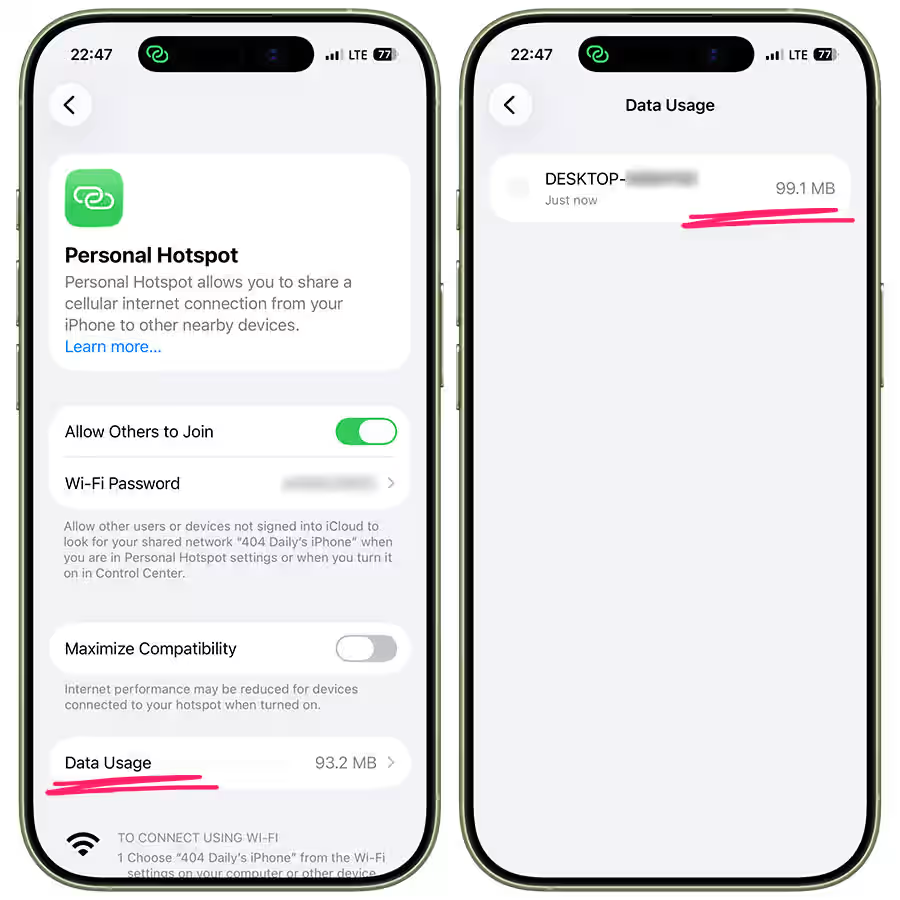
You’ll see a breakdown of devices that have connected to your hotspot and how much data each one has used.
That’s it. No digging through hidden menus. No third-party apps.
Why this is actually useful
For anyone on a limited data plan, this update is a big deal.
Maybe you:
- Work from your Mac or iPad using hotspot
- Travel frequently and rely on cellular data
- Share your connection with family
- Want to make sure no one is quietly draining your data
Instead of guessing, you now get a clear view of which device is responsible. It makes managing hotspot data in iOS 26.4 far less stressful.
Suggested: iOS 26.4 Beta 1 Features: Playlist AI, Video Podcasts, RCS Encryption, and Security Updates
How to reset hotspot data stats
If you want to start tracking from zero: Head to Settings > Cellular > Reset Statistics
This resets your overall cellular usage numbers, including hotspot tracking. It’s helpful if you monitor usage monthly or want a clean slate after heavy travel.
A small iOS 26.4 change that makes a big difference
Apple has technically tracked hotspot data before, but it was buried and easy to miss. In iOS 26.4, it’s finally placed right inside the Personal Hotspot settings where it belongs.
It’s not the flashiest feature in the update, but it’s one of the most practical. If you use Personal Hotspot often, this is an upgrade you’ll appreciate immediately.