
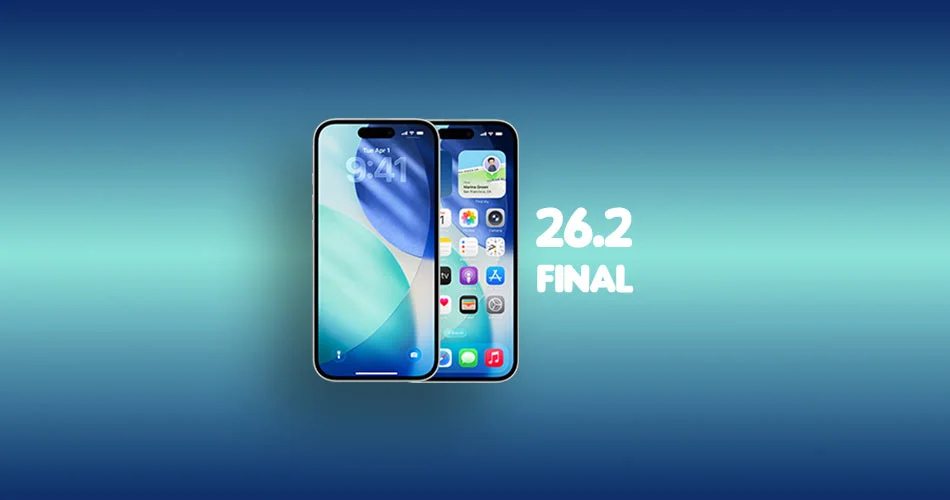
Apple has officially rolled out the final versions of iOS 26.2 and iPadOS 26.2 for all users after several weeks of developer and public beta testing.
Both updates refine the experience across iPhone and iPad with small but noticeable upgrades, refreshed UI elements, and quality-of-life improvements that stack up to a smoother everyday experience.
Before installing, just make sure you have a recent backup, because nobody enjoys living on the edge with system updates.
What’s New in iOS 26.2
iOS 26.2 has shaped into a surprisingly feature-rich update. Here is what you can expect in this final build.
Liquid Glass for the Lock Screen
The new Liquid Glass slider lets you adjust the translucency of the Lock Screen clock. It is a small tweak but gives the Lock Screen a fresh degree of personalization.
New AirDrop Features
iOS 26.2 adds a more flexible device-to-device transfer system that does not require contacts. Here’s how this new feature works: How to Use AirDrop Codes in iOS 26.2 (No Contacts Required)
Third-Party Assistants in Japan
iOS 26 continues to expand support for replacing Siri with third-party assistants. The feature is still limited to Japan for now.
Reminders Alarm Trigger
Reminders can now trigger an alarm at the exact moment they are due. Simple, obvious, and long overdue.
AirPods Live Translation (EU Only)
Users in the European Union get Live Translation when using supported AirPods. This is part of Apple’s continuing compliance updates for regional regulations.
App Improvements
Multiple apps get under-the-hood enhancements including Podcasts, Passwords, Notes, and Freeform. Nothing flashy, but noticeable if you use these apps often.
What’s New in iPadOS 26.2
The iPadOS update includes everything from iOS along with tablet-specific improvements.
Updated Multitasking Behavior
Stage Manager and multitasking gestures feel more responsive. Users can now drag an app icon out of the Dock to enter Slide Over or Split View. Early testers have reported smoother window snapping and less lag when switching sessions.
Both updates feel like the kind of mid-cycle release that prepares the platform for bigger features later while keeping existing devices running smoothly.
How to Download iOS 26.2 and iPadOS 26.2
You can update in two ways: the easy OTA method or the manual IPSW route.
OTA (Over the Air)
- Open Settings
- Go to General
- Tap Software Update
- Download and install the update when it appears
This is the simplest method and works for most users.
Using IPSW Files
If you prefer a clean install or need to update manually:
- Download the correct IPSW for your device (you will add the links).
- Connect your iPhone or iPad to your Mac or Windows PC.
- On macOS, open Finder. On Windows, open iTunes.
- Select your device.
- Hold Option on Mac or Shift on Windows and click Restore or Update.
- Choose the IPSW file you downloaded.
This method takes more time but is useful for troubleshooting or starting fresh.
iOS 26.2 IPSW Download Links
iPadOS 26.2 IPSW Download Links
Important Notes Before Using IPSW
- Know your method: Using Restore will erase your device, while Option + Click (Mac) or Shift + Click (Windows) with Update may preserve your data.
- Back up first: Use iCloud, Finder, or iTunes to back up your device.
- Choose the right file: IPSW files are device-specific—double-check your model before downloading.

![Can You Easily Repair the MacBook Neo? Teardown Reveals a Surprisingly Repair-Friendly Design [U]](https://404daily.com/wp-content/uploads/2026/03/macbook-neo-easy-to-repair-300x158.webp)