
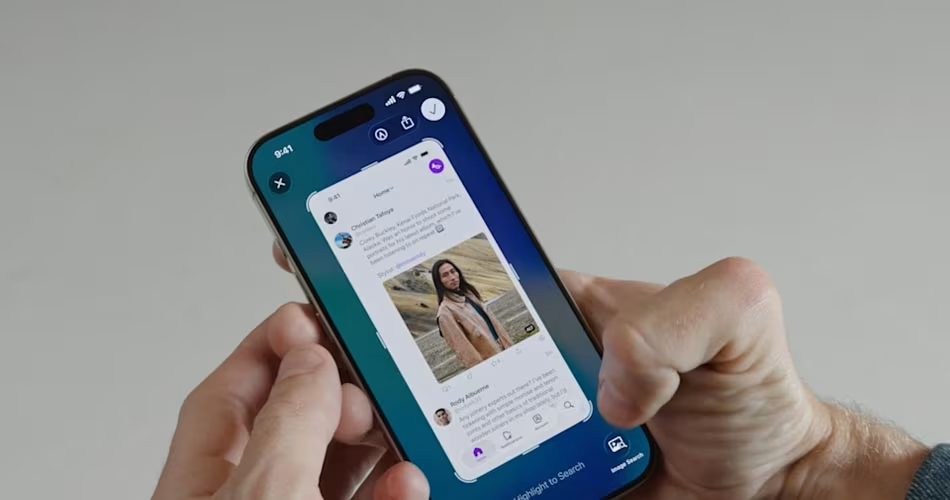
iOS 26 brings AI-powered screenshot features with Visual Intelligence, but they can get annoying fast. Here’s how to turn off the full-screen preview and reclaim your screenshot flow.
iOS 26’s Screenshot Features Are Cool… Until They’re Not
Apple’s new Visual Intelligence in iOS 26 is undeniably powerful. It analyzes your screenshots instantly and suggests actions like adding events, visiting links, or searching images, kind of like Apple’s take on Google Lens or Circle to Search.
But let’s be real: when all you want is a simple screenshot, that giant full-screen pop-up, complete with AI buttons and extra taps, feels like overkill. Even worse, Apple Intelligence scans your screen the moment you take a screenshot, and not everyone is okay with that.
Thankfully, iOS 26 gives you options to turn off the splash screen, and even disable Visual Intelligence altogether.
Related: How to Instantly Set Reminders on iOS 26 Using Apple’s Hidden Shortcut
How to Disable the Full-Screen Screenshot Preview in iOS 26
Want to bring back the old thumbnail-style screenshot flow? Here’s how:
- Open Settings
- Tap General
- Tap Screen Capture
- Toggle off Full-Screen Previews
Now when you take a screenshot, you’ll see the classic thumbnail in the bottom-left — and not the full-screen AI takeover.
How to Stop Automatic Visual Intelligence in Screenshots
If you don’t want iOS 26 analyzing your screenshots by default:
- Open Settings
- Head to General > Screen Capture
- Toggle off Automatic Visual Look Up
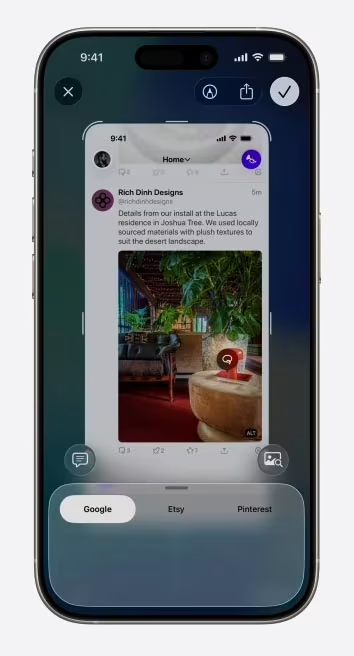
This will stop iOS 26 from auto-scanning your screen. You’ll still have access to AI tools like ChatGPT or image search, but only if you choose to use them.
Related: Download iOS 26 Beta 2 and iPadOS 26 Beta 2 OTA: How to Install and What’s New?
Related: How to Set a Custom Ringtone on iPhone in iOS 26 Without Using GarageBand
Want to Disable Visual Intelligence Completely?
If privacy is your priority, you can shut it all down:
- Head to Settings > Apple Intelligence & Siri
- Toggle off Apple Intelligence
That’s it. No more auto-analysis, no more chat suggestions, no more AI peeking at your screen.
Take Screenshots Your Way Again
iOS 26’s screenshot AI is packed with good intentions, but not everyone needs (or wants) a robot analyzing their memes, invites, or chats. Now you know how to disable the extra fluff and keep screenshots simple, fast, and private.