
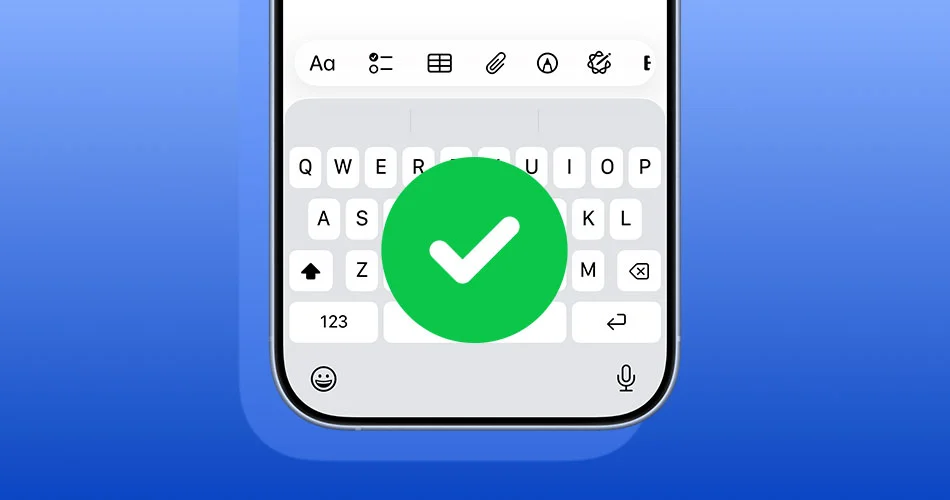
If your iPhone keyboard is missing letters or feels inaccurate when typing fast, you’re not alone.
Many users have been dealing with a frustrating issue where:
- keys register visually
- but characters don’t appear
- Auto-Correction starts fixing the wrong words
The good news is that iOS 26.4 addresses this. But if you’re still experiencing it or haven’t updated yet, here’s how to actually fix iPhone keyboard accuracy issues.
1. Update to iOS 26.4 (the real fix)
If you do only one thing, make it this.
iOS 26.4 improves how the keyboard handles rapid input, fixing the bug where taps don’t register properly.
How to update:
- Go to Settings
- Tap General
- Select Software Update
- Install iOS 26.4
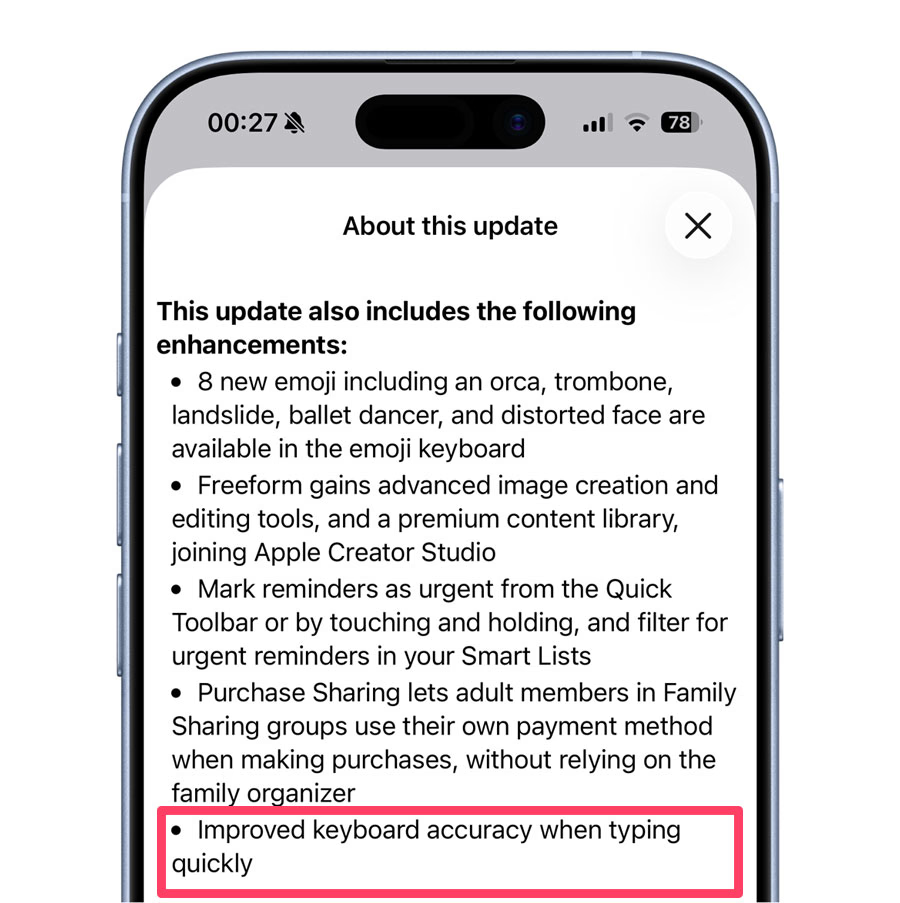
This directly fixes the iPhone keyboard not typing letters when typing fast issue for most users.
2. Reset keyboard dictionary
If your keyboard still feels off, your learned typing data may be part of the problem.
Resetting it can improve how Auto-Correction behaves.
Steps:
- Go to Settings > General > Transfer or Reset iPhone
- Tap Reset
- Select Reset Keyboard Dictionary
You’ll lose learned words, but accuracy often improves immediately.
3. Toggle Auto-Correction off and back on
Auto-Correction can sometimes glitch after updates.
Try this:
- Go to Settings > General > Keyboard
- Turn off Auto-Correction
- Restart your iPhone
- Turn it back on
This refreshes how predictions work.
4. Disable swipe typing (QuickPath) if you don’t use it
QuickPath can interfere with tap accuracy for some users.
Turn it off:
- Settings > General > Keyboard
- Disable Slide to Type
If you primarily tap to type, this can make the keyboard feel more consistent.
5. Restart your iPhone (simple but effective)
It sounds basic, but it works more often than you’d expect.
A restart can clear temporary input bugs affecting keyboard responsiveness.
Why your iPhone keyboard felt worse lately
The issue wasn’t just perception. A bug in earlier versions of iOS caused:
- missed keystrokes during fast typing
- incorrect Auto-Correction behavior
- inconsistent input feedback
That’s why many users searched for:
- iPhone keyboard missing letters when typing fast
- iPhone keyboard not registering taps
iOS 26.4 specifically targets this behavior.
Does iOS 26.4 completely fix keyboard accuracy?
For most users, yes.
Typing feels:
- more responsive
- more accurate
- more predictable
If you still notice issues, combining the steps above usually resolves them.
Final take
This isn’t a flashy feature update, but it solves a core usability issue.
If your iPhone keyboard has been frustrating to use, updating to iOS 26.4 and applying a couple of quick fixes can make a noticeable difference immediately.